Thursday, March 31, 2011

In Memory of Jean Bartik, Computing Pioneer and Friend

I'm going to digress this week to write a little about a former boss of mine who recently passed away. Her name was Jean Jennings Bartik, and if you look up her name on Google you'll find pages and pages of information about her. That's because Jean was a pioneer in the computing industry. Specifically, she was one of the six women who programmed the ENIAC computer at the University of Pennsylvania. Her story has been told numerous times and she has been honored in many venues. There is even a computer museum at her alma mater named after her. I have provided links below.

However the Jean I want to talk about here is the one I met in 1973. I was a young graduate of Temple University's School of Journalism when I got a job during a very tough recession at Auerbach Computer Technology reports--the brainchild of Isaac Auerbach, himself a computer pioneer. I was struggling to learn about the parts of computers and communications gear, to describe those parts for the update service Auerbach published.

About a year after I came to work at Auerbach, I was brought into a VP's office and told I would be transferred to a department headed by Jean Bartik. This was years after Jean's work on ENIAC in the 1940s and after her stints at UNIVAC and elsewhere. In the 1970s, most of Jean's former accomplishments were forgotten. I thought the move to Jean's department was a bad move and I was upset about it. However,  it turned out to be one of the luckiest career breaks I ever had.

Jean was a born teacher and she cared deeply for the cause of women in the computer industry. While Jean's name is widely known now, in the 1970s the significance of the women who programmed the ENIAC was totally ignored. The glass ceiling was firmly in place, and it didn't matter how good you were at your job. And Jean was great! During my stint as Jean's editorial assistant, she MADE SURE, I understood the technology I was writing about. She drew me diagrams, explained how things worked, and took the time to mentor me in a way no one did before or has since. Jean introduced me to the world of minicomputers and microprocessors and made me excited about this new upcoming technology. I will always be grateful for her extraordinary interest and help. When I left Auerbach to become minicomputer editor at Computerworld, she practically launched me out of her "nest."

I stayed in touch with Jean over the years and know she had to leave the industry at one point. This giant of computing wound up making a living selling real estate for a while. That changed later. The story that she told me is that  sometime in the mid 80s, historian Kathy Kleiman learned about the six women who worked on ENIAC and decided to follow up. Until that time, most people thought that the women in the photos about the historic computer were models, not the people who actually wrote the programs. After Kleiman's intervention, Jean and the rest of the group were honored in many different venues, which gave Jean a platform to advocate for and advance the role of women in computing.

Jean's kindness and help have stayed with me to this day and I hope I've been able to teach the people who followed me, in the way Jean taught me. In fact, my desire to teach baby boomers about technology probably stemmed from Jean's extraordinary way of making technology accessible even to me.  I would like to finish this post with a quote from Jean Bartik about how women in computing were treated in her day. This is taken from the About.com Inventors website.
I was just at the right place at the right time. It was divine providence or fate that selected me to be an ENIAC programmer. Betty Holberton quoted something interesting recently, 'Look like a girl, Act like a lady, Think like a man, and Work like a dog.' I was told I'd never make it to VP rank because I was too outspoken. Maybe so, but I think men will always find an excuse for keeping women in their 'place.' So, let's make that place the executive suite and start more of our own companies.
Some links for Jean Bartik:

IEEE Computer Society Awards
ENIAC Programmers Project
Top Secret Rosies
Obituary CNN: Computing Pioneer Jean Jennings Bartik Dies
The Jean Jennings Bartik Computing Museum at Northwest Missouri State University

Wednesday, March 23, 2011

When Buying Mobile Devices, Buy the Network First

This week AT&T announced that it was purchasing T-Mobile USA for $39 billion. Whether or not this acquisition goes through, it brought up an issue for me. I’ve been spending my time telling Baby Boomers how to use their iPhones and iPads. What I haven’t addressed is the importance of the network in your enjoyment of these items. It's important to have strong signals and a stable network to power the devices you use. Otherwise, they don't operate well, and you won't like them.

The importance of the network hit home for me last Friday night. I was in Manhattan and meeting my husband and some friends for dinner. I was sitting comfortably at the table waiting for them to arrive. When ten minutes went by, I decided to call, first my husband, then my friends. The first thing that happened is that I couldn’t get a signal at the table where I was seated and there was no Wi-Fi available to use. In a lot of places I have free Wi-Fi through Optimum Online, but not in this particular part of New York.

I left the table to go outside the restaurant to make the call.  There, my phone read that I had a signal, but two attempts at calling my husband ended up not going through. A third call went directly to voice mail. A forth call got a busy signal. I know my husband wasn’t on the phone at this time. A call to my friends also dropped and another went direct to voice mail. I tried sending a text, but that didn’t go through either.

Next, I tried sending an email, hoping that the data network was better than the voice network.  You could see the symbol in the left corner of the phone, indicating that the phone was trying to catch a signal to send the email.  That email was never completed. The culprit was AT&T’s network in NYC, which has been the subject of many complaints. 
This is what my signal indicator looks like. The star shape shows the phone looking for a signal. This was taken inside my house where I have Wi-Fi and a strong AT&T signal (bars)

AT&T is aware of its problems in NYC and continues to upgrade its systems there. Articles have been written about people who carry two phones in NYC, one for voice calls and another for data. However, this doesn’t help you when you are stuck without cell phone service at a crucial time. Luckily, being late for dinner doesn’t qualify as crucial. However when you’ve spent hundreds of dollars on an iPhone or iPad, and you’ve gotten a data plan, you want it to work when you want it to work.

As you know, if the network is a problem you can’t take advantage of all the cool aspects of many of the apps I’ve been talking about in this column. Most of them rely on consumers being able to access a good signal, whether data or voice. Wi-Fi, while available now more than ever,  isn’t always available to help you. Another problem: if you don’t have a strong network signal, your phone keeps trying and trying to download your email etc., using up your battery life.

So here’s the thing.  You all know I’m an iPhone aficionado. I could have switched to Verizon for better service in NYC when Verizon announced they would carry the iPhone. I didn’t, and here is why: my house is in New Jersey and when in the past I used Verizon, I was unable to use my cell phone in my house because Verizon doesn’t have a tower nearby. AT&T, on the other hand, does have a tower nearby and I can use my AT&T phone easily in my house. I know that this problem hasn’t been overcome over the years because visitors to my house who have Verizon experience the same problem. Visitors with Sprint often find their batteries depleted as their phones continuously search for a signal.  

So I’ve chosen to have cell service at home over cell service in NYC.  You too will have to make similar choices. Choose the service that works best for you as an individual or your family as a whole.  Then decide on the tablet or smart phone that is right for you.

 If the regulators let AT&T purchase T-Mobile it will be good for some consumers and bad for others. AT&T users will have more coverage in places like NYC where cell signals are a problem. T-Mobile users will probably lose out on pricing. We will all lose out on choices.  The bottom line remains, when buying your iPhone or any other mobile device, always buy the network first. Of course, as in my case, that doesn't always work out.

Thursday, March 10, 2011

How Much iPad2 Do You Need, Boomers?

The March 11 release date for the new iPad2 is right around the corner, but I am not going to buy one, at least not yet. The reason is simple. Despite all the improvements Apple has made to the iPad, I’m still figuring out my first generation iPad. 

Like many Boomers, it takes me a while to explore new technology. My iPad still “magical” to me and delivers more entertainment and utility than one device ought to. I know I’ve groused about some of the iPad’s shortcomings, but mostly, it is a terrific device.

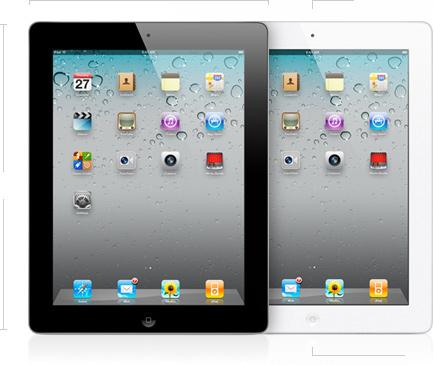
This blog post, however, is for those of you who are going to run out and buy the iPad2, pictured above, on March 11. I know there is pent up demand for these devices. A lot of people waited to buy, wanting to see if the tablet phenomenon was real or if people got tired of the iPad easily.

Recently a friend emailed me trying to figure out just how much storage she was going to need on her new iPad when she got one.  I couldn’t tell her for sure, but judging by my use, going the middle road was a safe bet.  When I bought my iPad I bought it with Wi-Fi and 3G and 32G of storage. I thought I would easily fill it up.

The truth is I haven’t come close. Most of the apps I use just don’t hog the iPad’s space. What takes up a lot of space are my pictures, but even with all of my pictures, all of my music and a few videos, I have plenty of space left.

Here are your options for the iPad2:

iPad2 With Wi-Fi : 16GB $499, 32GB $599, 64GB $699
iPad2 With Wi-Fi and 3G (your choice Verizon or AT&T): 16GB $629, 32GB $729, 64GB $829

It’s easy to overbuy when you are looking at the latest and greatest thing. To prevent this, I’d say, take a look at your computer. If you are the kind of person who runs out of storage on your computer and has to frequently upgrade or offload to a storage drive, then you’ll be the kind of person who quickly fills up the iPad.

If you are a modest computer user, you’ll be a modest iPad user too. What’s nice about the iPad is that if you are wrong, and you do fill it up, you can just select to put only a portion of your music or TV shows on the device, and the rest will stay on your PC or Mac. 

A  post on the Fortune website by Philip Elmer-Dewitt is a very good resource for people who are trying to figure out if they will get Wi-Fi only or 3G enabled versions, or if they will attempt to use the device as a Wi-Fi hotspot tethered to their phone.

Basically, the 3G works for commuters who want to make sure they can access their email on the iPad during their daily commute. It is also very good for those who take their iPads on the road with them and use them as laptop substitutes. And the 3G version of the iPad comes with GPS, something that is not on the Wi-Fi only version. So if you are planning to use your iPad as a navigation device, you might consider springing for the 3G version.

To make things more confusing, Apple will soon allow users to “tether’ their iPads to their iPhones if they use AT&T. That will make the iPhone a personal hotspot for your Wi-Fi only iPad2. You download your data through your phone to your iPad, in the same way you use a Wi-Fi hotspot.

This service costs $20/month, but has the advantage of letting you buy 3G service on an “as needed” basis. I don’t think many Boomers will be interested in the hotspot offering because setting it up each time you want to use it has been described as a painful experience by some who have tried. 

I hope this post has been some help to those who plan to buy the iPad2 March 11 and thereafter. Good luck and enjoy!

Saturday, March 5, 2011

Tell Google What You Think About Junk Search Results, Boomers

There has been a lot of talk lately about how Google is changing its search algorithm to get rid of some of the “junk” that pops up near the top of the list in many searches. Take a look at this article on CNN or this one on ZDNet. While some websites are adversely affected by any tweaking Google does, I will certainly welcome this change.

After all, Google made its reputation by serving more accurate search results than those other guys. The company definitely needs to keep up with the times and make sure that it delivers relevant results, or people will flee to search engines that will.

Recently, I searched for something and one of the top five sites listed in the results was basically gibberish. Now that Google made the change, I really wish I had saved the search to compare it to the "new" one. The result web site had the keywords I had searched on, but they were embedded in a sea of junk returns. It was just a waste of my time. I bet you’ve had the same experience and wondered why Google wasn’t doing anything about it.

Well, finally it is.

One of the changes Google made is removing results from so-called "content farms" from its lists. I don’t know if you Boomers are aware of the concept of content farms, but here it is. Some bright soul figured out that writers (and in some case robots) could create "news" articles that would rise to the top of the search listings by looking at what people search for, and then creating an article that includes as many of those key words as possible.

The content farm stories have legit headlines, so people click on them. When you get to the web site, you find content that is very low quality and looks like it was strung together from a number of different places. Kudos to Google for taking on content farms and putting them in their place.

But here's the rub: some "content farms" are better than others. Some publish garbage and others take search engine results and popular keywords and actually use freelance writers to create something meaningful. Here is a list of  web sites that were affected by the change in the algorithm according to Sistrix and reported by ReadWriteWeb

Google has taken another step as well.  To explain this, I’ll have to explain the concept of a web browser. When you get a computer, it usually comes with a program you can use to explore the web. Mac users get Safari preinstalled. Windows users get Windows Internet Explorer. Several other companies offer browsers anyone can download for their computer. Mozilla Firefox and Google Chrome are examples.

While a browser lets you explore by typing in web addresses, sometimes it comes equipped with its own search bar, powered by a search engine. Most of the time that search engine is Google or you can access Google search by typing http://www.google.com in your web browser. Sometimes the preinstalled search engine will be Bing, Microsoft’s search engine. You can get to Bing by typing in http://www.bing.com.  Because Chrome is a Google product, it is particularly well integrated with that particular search engine.


Now Chrome users can get a plug-in, a little program to download from the website, that lets them report back to Google when sites deliver poor content or content that doesn’t match the search query. Derek Gorden says on Search Insiders:

“An important factor in all this is a new plug-in for the Chrome browser that enables users to block sites they feel do not deliver quality content relevant to the search query.  The Personal Blocklist, which is available for free in the Chrome Web Store, shows up as a little red hand icon at the far right of the Chrome browser bar -- one quick click sends a message to Google that you didn't care for the content in a site listed in a search result.”

Certainly, you’ll be doing Google’s work for them, and I know a lot of us think that Google, with its billions, should be smart enough to catch these sites on their own. However, this is a clever example of what is called “crowdsourcing,” getting a lot of data from a lot of anonymous people to improve a product. I think Google’s search can use some improvement. I usually use Firefox as my browser, but I am considering using Chrome just so I can tell Google what I think.

In the mean time, take a look at your search results the next time you use Google. Are they better than they used to be? Are you delighted?  Or are you ready to change to Bing? Go back in time to "Yahoo?" Try out some new search engines like DuckDuckGo?

Sunday, February 20, 2011

Struggling to Remember Passwords, Boomers? Try a Password Manager.

Recently, I've been struggling with passwords.I don't know if my inability to remember all my passwords is due to age, or if everyone is afflicted by it. Nevertheless, every time I go to a new website, it wants me to set up a new user name and password. It is very tempting to use the same password for everything, but all the security experts say that's wrong, that this practice leaves your data vulnerable to hackers and leads to identity theft.

Yet when I try to vary things, I find myself unable to remember which variation I chose for which website. That wouldn't be so bad, but many websites lock you out after a given number of tries, which is really frustrating to me. As many of you do, I chose to keep a list. Of course keeping a list of passwords on your computer is about as dumb as using the same password for everything. For a while I thought I was outsmarting the hackers by keeping the list in a file labeled "info for eye doctor." I've learned, however, that hackers can find those kinds of files pretty easily.

My next step was to rename the file, take it off my computer, and put in in the "Dropbox", the secure "container" for documents and photos that resides somewhere in the cloud. I wrote about Dropbox recently. Still, that didn't solve my problem. Whenever I needed a password I had to open Dropbox (which has its own password) and search through my list to find the right one.

Last week, I read an article about Google that made me think twice about my password practices. In an attempt to make Gmail and Google cloud applications like Google Documents  more secure, Google is offering its users the option of a 2-step verification process so they can log into their sites more securely. The concept of 2-step verification isn't new. Some banks and other very secure sites have offered this in the past. I'd never taken anyone up on their offer to use this process to protect anything though. It just seemed too difficult to me.

With 2-step verification, a unique password is generated by the site you are trying to enter and sent to your cell phone or to some other place like your email account. (You set all this up ahead of time.) You look up this password on your email or text message and enter it in the Google site to provide that extra level of security. Luckily, you only have to do this once a month, although if you are paranoid about hackers you can do it every day. Nevertheless, it seems pretty inconvenient to me. If you want to try this, log into Google,  go to My Account, then Settings, and then Google Account Settings.

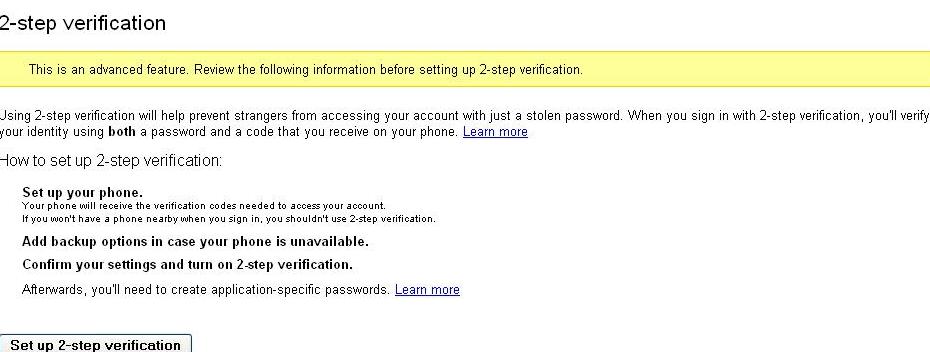
Afterwards, you can go to this screen:

Once you select "Using 2-step verification" you'll be taken to this screen:


The process is easy to follow after that, but I decided it was too much for me. Besides, this would only protect my Google information. I would wind up having to implement 2-step authentication for all websites that offer it, especially those that contain personal or important information, such as my banking application. That just sounded like too much work.

For the past few years, I'd been hearing about free "Password Managers" which encrypt your passwords and auto fill them in for you when you need them. It took me a long time to want to try this. I thought it would be difficult to set up this kind of program and I worried about what would happen if something happened to the password manager company. One of my tech-savvy children was using a password manager, but two of them were not. It was time to give the program a try.
For no particular reason I decided to try out LastPass, a password manager that has been given some high marks by CNET. I think I've mentioned CNET before as a trusted source of product reviews. There are plenty of other password managers out there to try, for sure.  I went to the LastPass website and downloaded the program.

I don't think that software developers really know the fears that people have when trying something brand new to them, especially something that says it will keep you safer. I had all kinds of questions about the password manager that were not answered by all of my researching. I wanted to know, for example, if I would have to add each and every password manually to the manager (no!), how it would handle sites that I couldn't remember the passwords to (it offers me alternatives), what would happen to the passwords currently stored on my computer (they are encrypted), and if I could entrust the company with my passwords. (Since you are not doing anything permanent and can still enter passwords manually, you won't loose your data. And this company says only encrypted data is sent to them, so you don't have to worry about them being hacked.) Until I actually tried out the password manager, I didn't know the answers to any of these questions.

After I downloaded LastPass, I went to my download manager in the Firefox browser, found the file and clicked on it to install it. Here is the page that you use to set up the password manager:
Notice that you have to set up a sort of "super password" to get into your LastPass account. This has to be something you will remember, but it also has to be strong enough and long enough that you will trust this password to hold the key to all your other passwords. I figured out what mine would be, checked off the terms and conditions and licenses box, and held my breath as my encrypted information was sent to LastPass.

What happened next was interesting. LastPass, created a list of all sites and passwords taken from my computer, and collected it in its Vault.  After I logged on to their website using their master password,  I could actually see what my passwords were. I had the option to have LastPass hide them, which I took advantage of. This is the way the Vault looks to me now, without the passwords visible:


The list included some old passwords that had been changed and some passwords that I had tried erroneously. All of these would be stored. In addition, the site created an Icon on the top of the sign in pages on my accounts such as my banking account, Google, and the Wall Street Journal. This is what the Icon looks like on my Google page:

As long as I remember my super password, or as LastPass calls it, my master password, I have access to my vault on the LastPass website. I also set up a security question so I could retrieve that master password, if a senior moment gets to me.

There are always some glitches along the way of adopting a new technology. Recently I went to one of my banks' websites, and found that LastPass didn't have that password in its vault. I wound up having to reset the password at the bank, but now LastPass has it, and I should be able to enter the site without a problem.  For the most part, I've found using this program a great convenience and a great relief. Once again, I want to say that there are many other password managers that work similarly to LastPass, and you should feel free to try them. Just check out their reviews on a site like CNET before you do.

Also, I just want to mention that many of these Password managers charge extra for managing your passwords that are on your mobile phone or iPad, and that there are other password managers out there that  are designed especially for mobile devices, not PCs.

Here is a list of resources about password managers:

Top Ten Reviews
Best Password Managers: Top 4 Reviewed
5 password managers for storing, protecting and syncing your personal information



Wednesday, February 16, 2011

Alternative Way to Remove GPS Info From Photos on the Web

This is just a short update to my previous post about photos updated to the web that carry GPS information with them.

Besides being able to block that information from being collected by your phone or camera, the site Lifehacker presents ways to remove the data from your pictures, once they've already been uploaded to the web.

So if you've already posted a lot of pictures on Facebook, and you don't want the geo information to be associated with the pictures, follow the directions contained in this Lifehacker article: How Can I Remove Personal Info (Like Location) From Photographs by Whitson Gordon.  The instructions for removing the offending information for Windows are very simple. Thank you to my daughter for bringing this article to my attention.

Monday, February 7, 2011

Boomers: Your Photos May Disclose More Data than You Think

Recently, an ABC news video has been making the Internet rounds, exposing the fact that newer cameras and phones equipped with GPS chips are embedding location information into photos. This makes it easy for stalkers to find the addresses of the people who posted the photos. A lot of people are worried about this; I received the clip from three people in two days.

The iPhone, for example, automatically embeds the user's latitude and longitude in the "metadata" attached to each photo. If you don't want to be found for some reason, this could be dangerous. I can think of a few obvious examples: a battered woman who has left her spouse; a celebrity who wants to preserve some moments away from the paparazzi; a public official who doesn't want his "niece" found; the CEO of a financial organization that has lost its depositors' money who doesn't want journalists to find his home.

This ABC online story tells the tale of two researchers at the International Computer Science Institute in Berkeley, California who were able to find the private home addresses of a Playboy Playmate and some TV hosts. It was relatively easy to do.

It's always been relatively easy for a motivated individual to find your home address, even before these days of online look-up systems. You could just look in the White Pages. If the person was from out of your local area, you went over to the library and looked through the shelves of White Pages books stored there. Obviously, the White Pages had its limitations. In the past, if you didn't know where someone lived, you might have to go through a hundred telephone books to find them. In other words, you really needed to be motivated. And most people who didn't want to be found paid the telephone company for an unpublished listing.

However, it's now much easier, not to mention quicker, for unscrupulous people to find out where you live.  The New York Times notes that:
By downloading free browser plug-ins like the Exif Viewer for Firefox (addons.mozilla.org/en-US/firefox/addon/3905/) or Opanda IExif for Internet Explorer (opanda.com/en/iexif/), anyone can pinpoint the location where the photo was taken and create a Google map.
One article said that people who list items for sale on Craigslist could be setting themselves up for robbery, just by posting a picture of the item for sale on the website. Last year, I posted a photo, taken at my home, of an old TV I wanted to sell on Craigslist. I didn't give out my address; people contacted me through Craigslist's email address, and I only contacted people who were interested and whose identity I could verify.

The TV was purchased by someone who had a business in my local area, and I was able to confirm his identity online and match the phone number he gave me in the email with his place of business. But what if the picture of the TV had been taken by a phone that was GPS enabled and had included location metadata? Then any unscrupulous person could have known where I lived and what merchandise I had. Further, if I had shown the TV in a living area of my home, they would have been able to find out much more about me. This is very unsettling. So if you ever post pictures online --of your cute grandkids, your dog, the tons of snow in front of your house--you should think about the information you are sharing.

There are many good reasons to use GPS metadata in photos. It's very convenient, for example, to post pictures to services like Flikr which then "know" where the picture was taken and label it with the location. Pictures from your trip to Japan will have exact locations attached, which for someone who forgets to record that kind of info, is very helpful when organizing albums. If you post pictures from home, you are not at risk of disclosing your location if you choose to make your photos private (an option most photo sharing sites allow) and only share them with people you know. However, if you take a lot of pictures at home and make your albums public, then you should think about the risks associated with letting everyone who has access to the site know your location.

Prompted by one of the articles I read on this subject, I visited a website called I Can Stalk You, which bills itself as "raising awareness about inadvertent information sharing." This site has hints on how to turn off GPS tracking for photos on the iPhone. Here is what I Can Stalk You has to say about turning off the GPS location information on the iPhone 4:

To see your settings, go to Settings, General, then Location Services. From there you can set which applications can access your GPS coordinates or disable it entirely.
For the iPhone 3 series of phones, users have to jump through some hoops. iPhone series 3 users can turn off ALL location based services by going to Settings, General then set Location Services to Off.  While this is simple, I don't recommend doing this. You will never be able to use Google Earth, for example, or driving direction features that use your present location.

So if you want to turn off location data for the camera on the iPhone 3 series, this is what you'll need to do: Go to Settings, General, then Reset.  The rest of the instructions are borrowed from this page on  the website I Can Stalk You, which I strongly suggest you visit.
Be careful here! We want to select Reset Location Warnings, and then Reset Warnings. This restores all of our Location based warnings for each application to the default, which in most cases is "Ask on first use".


From here, once we enter into the default Camera app on the iPhone, we can select Don't Allow. This will prevent the Camera app from geo-tagging our photos.

Not everyone has an iPhone, and I Can Stalk You has some directions for Blackberry users and some others. Since every manufacturer has different instructions, it may take some digging for you to figure out how to disable your information on your newer camera or on your smartphone, if you choose to do so.

In this day and age it's not only technology that reveals your location, but sometimes your friends want to tag the location that a picture was taken on Facebook. ABC News provides the following information on how to protect your Facebook photos from friends who might want to disclose your location to others.
  •  Go to your Facebook account.
  •  Click "Account" in the top right corner.
  •  Click "Privacy Settings.".
  •  In the "Sharing on Facebook" section, click "Customize settings."
  •  Scroll down to "Things others share" and make the option next to "Friends can check me into Places" read "Disabled."
So fellow Boomers, enjoy taking and posting pictures. I know you do it. I've seen those pictures of your grandkids! Tell your children about this too, and make them a little bit more aware of what data is hidden in those pictures they take and share.