Showing posts with label Apple iPAD. Show all posts

Friday, October 7, 2011

From one Boomer to Steve Jobs: You Changed Our Lives

Dear Steve Jobs,

We all know you were one of us, a Baby Boomer. Of course, you were a bit different from the beginning. You thought different. Well, even though your ad campaign said
“Think Different” I’ve always been partial to “Think Differently.” Either way, as one Baby Boomer to another I want to thank you for giving us the iPod, iTunes, the iPhone and the iPad. Each in its own way has changed the lives of many Baby Boomers. 

Here are some examples. The iPod changed my travel life. Before the iPod, whenever my husband and I would travel, we would take along an extra bag for all of his CDs and his CD player. He never had enough jazz with him. When the iPod came along, he was reluctant to try it. He said he would never be able to get the quality of his CDs on this device. Some time went by and we were planning a particularly long trip, so he figured out how to transfer his music to the iPod using Apple Lossless audio compression. It was just what he needed. He hasn’t used a CD player since, except perhaps to upload to his computer. When we go on vacation, no more do we have to take a suitcase for the CDs. 

You gave us the iTunes store and that changed how I bought music.  You don’t hear much about this store as an invention, but it was an invention none the less. Not only could I now download individual songs and “albums” to my computers and transfer them to my iPod, I could research music easily here. While the music industry said you ruined their business by letting people sample and buy piecemeal, consumers loved it. A lot of people were angry about your proprietary format, too. But that doesn’t change the fact that this was an amazing invention. The iTunes store today includes much more than music. People buy TV episodes and movies there. They can buy a documentary to take with them on the go. Steve, for better or for worse, you revolutionized the way people buy music and other media, and we Boomers were the beneficiaries.

I also remember when I had a phone that was just a phone. It couldn’t help me find my way around, or help me look up something on Google. Nor could it record important meetings or take impromptu color pictures. I remember when it was a struggle to text, so much so that I didn’t do it and I wondered why all the “kids” were texting so much. Now I have an iPhone, and for better or for worse, I am never without my email or a book to read. Now I send text messages often, and I text to other Boomers, not just my kids. 

Everyone who reads Tech and the Baby Boomer knows how excited I was about the iPhone when I got my first one. Travel apps took me to destinations I could only imagine. Brain games kept me sharp. It really was the first phone that was easy enough for the technologically challenged to use, and so it was an good choice for the Baby Boomer generation, especially when we had some disposable income to spare.

And then, the iPad came along. You said it was magical and you were not far from the truth. How many devices out there can let you see a slide show of your entire photo library and also let you program your digital recorder? How many devices let you read a book, draw a picture and open your locked car? On how many devices can you play board games with others and watch a movie?

I know I sound like a commercial but the iPad was an amazing invention and I know many Baby Boomers who use it every single day. Steve, I know that you had this idea about tablets well before anyone else. I remember the Newton way back in 1993, your failed tablet computer. The Newton was an idea before its time. The iPad was an excellent execution of an idea whose time had come.

I know that there are many Baby Boomers who swear by their Apple computers, whether it was a MAC or today’s more advanced models. I was a PC user myself. However, I understand. When Microsoft was always breaking down, Apple’s operating systems were sturdy and rarely needed repair. Graphics artists loved them. Schools loved them. An Apple computer was probably the first computing device many children ever used, and most of them used them in their schools.

So I end my posthumous letter to you. You were a Baby Boomer who changed the world. You were a a computer genius, but you were cool. You were one of us and your products transformed us. Thank you.

Esther Surden


Friday, August 26, 2011

Tech Suggestions for Hurricane Irene


As Hurricane Irene hones in on the Eastern Seaboard, rather than bringing in my patio furniture, I began to think about my devices and how I would get emergency help in case electricity went out. Gone are the days of the battery run transistor radio that I would stow under my pillow at night to lull me off to sleep and was my emergency tether in times of trouble. Now, I get most of my news via a cable connection.

My iPhone has a long life battery for a cellphone, but that will give out after a few hours of no electricity. My iPad’s battery lasts 10 hours, and that should be long enough to last through a minor outage, but not a prolonged one. My husband's Kindle has the best battery life, so he should be set for book reading for a while.

If cable goes out, I’m sunk because my Internet (but not my iPhone mobile Internet) is tied to the cable company. Even my home phone system, except for one old-fashioned dialup line, runs over the cable network. Making preparations to live without electricity for a couple of days is daunting. Here are some steps that you and I can take so our entire communications network won’t be disrupted.

  • Charge everything. I am charging my cellphone, iPad, laptop and anything else I can think of so that they will be ready for a power outage.
  • Consider buying backup batteries and emergency chargers. You can get backup batteries for most cell phones and “emergency chargers” for the iPhone and the iPad. I’m not endorsing any brands here, but I found a number of them listed on Amazon.com. Since time is of the essence, I think you’d be better off going to your local RadioShack.
  • Download a free local news radio app for your smartphone. I downloaded an app from my local CBS affiliate that lets me listen to the radio over my cell phone. The best way to do this is to go to the web address of the local radio station you want to follow during this crisis, and find their app. This may be the only time I’ll want to do this, but if the power goes out and I want to know what is going on, I’ll be able to listen to the local radio.
  • Turn off data roaming to conserve power. If you find that you are draining your smartphone’s battery, turn off data searching. The phone won’t be wasting its power trying to get a signal it can’t get because your wireless network is down, but it will still be available to receive phone calls from loved ones.
  •  If you run out of battery power on your cell and simply have to have your cellphone, consider using your car’s battery as a charger. Make sure you drive the car outside of your garage before you turn the vehicle on to charge the battery, to prevent carbon monoxide poisoning.  
  •  The government says we should all have a battery operated radio with the NOAA weather channel. I’m going to stop by my local RadioShack to see if they have any left. And, of course, buy regular batteries. You’ll need them for the radio and for your flashlights. (Of course the iPhone and iPad have a Flashlight app you can download for free from the App Store.)
  • Consider signing up for Twitter and “following” the state and local government authorities, NOAH, and your local newspaper. Twitter can be the fastest way to find out news during an emergency and can keep you informed if the cable or TV networks go out.
  • Texting. During some emergencies, the cell phone voice lines are clogged but since texting uses a different channel, texts can get out. If you don’t know how to text on your phone, consider figuring it out before the next emergency strikes.
  • The government suggests that you designate someone out of the danger area to be your “go to” phone call if you become separated from your family for some reason. So if your son John gets taken to a shelter or daughter Mary can’t get home but is fine, you can call the out of state person and learn that Mary and John are OK.
  • Also, if you use ATM machines to get money from your bank account, remember that they are computers and may be down as well. Go early and withdraw some money. It can't hurt.
Please feel free to comment on any of these suggestions and provide your own suggestions on using your technology during an emergency. Times have changed and so has the way we get information. I hope all you East Coasters stay safe during this hurricane and I hope this information has been helpful for others who may face emergencies.

Thursday, March 10, 2011

How Much iPad2 Do You Need, Boomers?

The March 11 release date for the new iPad2 is right around the corner, but I am not going to buy one, at least not yet. The reason is simple. Despite all the improvements Apple has made to the iPad, I’m still figuring out my first generation iPad. 

Like many Boomers, it takes me a while to explore new technology. My iPad still “magical” to me and delivers more entertainment and utility than one device ought to. I know I’ve groused about some of the iPad’s shortcomings, but mostly, it is a terrific device.

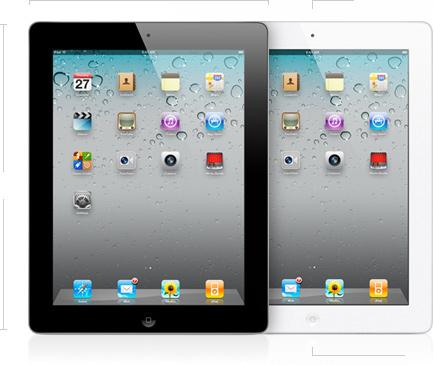
This blog post, however, is for those of you who are going to run out and buy the iPad2, pictured above, on March 11. I know there is pent up demand for these devices. A lot of people waited to buy, wanting to see if the tablet phenomenon was real or if people got tired of the iPad easily.

Recently a friend emailed me trying to figure out just how much storage she was going to need on her new iPad when she got one.  I couldn’t tell her for sure, but judging by my use, going the middle road was a safe bet.  When I bought my iPad I bought it with Wi-Fi and 3G and 32G of storage. I thought I would easily fill it up.

The truth is I haven’t come close. Most of the apps I use just don’t hog the iPad’s space. What takes up a lot of space are my pictures, but even with all of my pictures, all of my music and a few videos, I have plenty of space left.

Here are your options for the iPad2:

iPad2 With Wi-Fi : 16GB $499, 32GB $599, 64GB $699
iPad2 With Wi-Fi and 3G (your choice Verizon or AT&T): 16GB $629, 32GB $729, 64GB $829

It’s easy to overbuy when you are looking at the latest and greatest thing. To prevent this, I’d say, take a look at your computer. If you are the kind of person who runs out of storage on your computer and has to frequently upgrade or offload to a storage drive, then you’ll be the kind of person who quickly fills up the iPad.

If you are a modest computer user, you’ll be a modest iPad user too. What’s nice about the iPad is that if you are wrong, and you do fill it up, you can just select to put only a portion of your music or TV shows on the device, and the rest will stay on your PC or Mac. 

A  post on the Fortune website by Philip Elmer-Dewitt is a very good resource for people who are trying to figure out if they will get Wi-Fi only or 3G enabled versions, or if they will attempt to use the device as a Wi-Fi hotspot tethered to their phone.

Basically, the 3G works for commuters who want to make sure they can access their email on the iPad during their daily commute. It is also very good for those who take their iPads on the road with them and use them as laptop substitutes. And the 3G version of the iPad comes with GPS, something that is not on the Wi-Fi only version. So if you are planning to use your iPad as a navigation device, you might consider springing for the 3G version.

To make things more confusing, Apple will soon allow users to “tether’ their iPads to their iPhones if they use AT&T. That will make the iPhone a personal hotspot for your Wi-Fi only iPad2. You download your data through your phone to your iPad, in the same way you use a Wi-Fi hotspot.

This service costs $20/month, but has the advantage of letting you buy 3G service on an “as needed” basis. I don’t think many Boomers will be interested in the hotspot offering because setting it up each time you want to use it has been described as a painful experience by some who have tried. 

I hope this post has been some help to those who plan to buy the iPad2 March 11 and thereafter. Good luck and enjoy!

Monday, January 31, 2011

Eight Ways One Boomer Uses Her iPad Daily

Recently, I had a fascinating conversation with my niece who won an iPad at a charity event. She said she only uses it to play Scrabble, but that her 11 year old daughter uses the iPad for numerous things like watching downloaded TV programs and playing games. In her house, an iPad has become an entertainment device for her child. That made me think of the many ways I use my iPad, and I know I am not making as much use of it as many people.  Here are eight  ways I use my iPad on a daily basis.

1.  Checking email. My iPad is upstairs where I don't have a "real" computer, and I don't carry my phone with me around the house. Therefore, I check my email on the iPad quite often.  I usually don't write lengthy replies on the device, but save that task for my computer that has a more comfortable keyboard option. Sorry, Steve Jobs, but I really don't want to type for any length of time on the iPad's keyboard.

2. Reading books. I always have a book going on the iPad, usually in the Kindle app. With the Kindle app, I can read my books on multiple devices, and they stay in sync, so when I start to read on one device, I pick up where I left off on another, a feature I really like. Right now I am reading  a book called Spies of the Balkans by Alan Furst on three devices: my computer, my iPhone and my iPad.


3. Reading magazines and newspapers. I downloaded the New York Times app and the Washington Post app. I also have the USA Today app on my iPad.


I have a lot of magazines on there too, but find I spend less time reading them on the iPad than I expected. As I've said before in this blog, magazines aren't working out that well for me on the iPad. While their interactive features are interesting and engaging, I usually save magazine reading for airplane trips. Unfortunately, you can't keep the Wifi on in most airplanes, so you lose the interactivity of many of the newer apps.

3. Watching TV I missed. I have a DVR, but sometimes I miss recording a program. If it's on ABC, I watch it on the ABC app. Otherwise, I "stream" it from Netflix. The Netflix app is free, but you do have to pay Netflix's monthly subscription fee, which lets you watch practically anything the company offers on demand. One caveat, however: if you start something on one device, like your computer, and then try to watch it on Netflix on the iPad, Netflix doesn't always hold your place.


4. Finding out tomorrow's weather. OK, I'll confess. We don't watch local news at night, so I'm often clueless about the forecast. It's easy to keep up with any one of the app store's weather apps.  This is The Weather Channel app that I use:


5. Playing Scrabble. This simply is one of the most addictive and fun apps out there. I play the "Solo" game, locking wits with the computer sometimes. Luckily, you can set how hard you want the computer to challenge you! Also, my husband and I "Pass and Play" taking a few turns each night before we fall into bed.So far we are pretty evenly matched although there was that one time he beat me by 100 points!


6. Looking up odd facts on Google. Google is great, and if you ever want to know what a word means or who that actor is in the old movie you are watching, Google is the place to go. I use the iPad app for finding out things on Google often.

7. Looking at my old pictures. I think the iPad is unsurpassed as a way to look through your old digital photo albums. It's just so easy to flip between pictures and the pictures look gorgeous on the device.

8. Checking Facebook---I'm not a big Facebook user, but I admit I go there almost every day to check in on people's updates and figure out what's happening with my far flung family.  The Facebook/iPhone app is easy to use and also makes putting in a status update quite easy

.

What surprises me in all of this is the one thing I don't do much: surf the web. I like to use a bigger screen for that job, so when I'm looking at a lot of websites, I go to my computer. Also I don't create much using the iPad. I guess I never got past the rather hard-to-use keyboard.

Nevertheless, the iPad has eliminated the need for a laptop or netbook in our bedroom. I often ask myself if the iPad was worth the money, and my answer right now is "yes". Certainly it is a luxury gadget, but it's one that brings me pleasure and gets a lot of use.

If any of you have iPads, please let me know what you use yours for on a daily basis. It would be fun to compare notes.

Friday, December 10, 2010

What kind of Tablet Should You Buy, Boomers?

Hello, Boomers. Once again I want to apologize for not publishing in this blog recently.  I am in the midst of putting the finishing touches on my thesis and will return to blogging once that is complete. In the meantime, a colleague of mine, Gerry Purdy, of MobileTrax, LLC has written an email giving his advice to family and friends about what kind of tablet they might want to buy for the holidays. Most of Gerry's e-mail newsletters are written for the industry, but I thought this one was applicable to you. With his kind permission, I reprint it here.


I’ve had a number of friends and relatives ask me, “What tablet should you buy for the upcoming holidays?”  The question is a good one to consider because there are so many choices this year.  Remember that just a year ago the only ‘tablet’ in high volume production was the Kindle eReader.  Now, there’s the new (better but still B&W) Kindle, the color nook from Barnes & Noble (really an eBook reader), the full function Apple iPad, the Galaxy Tab from Samsung and products announced from Dell (Slate) and RIM (BlackBerry PlayBook).  I’ll focus on the first four products in this issue as I haven’t yet seen the Slate or PlayBook which are not yet shipping in volume.

Each one of these tablet devices may be right for you depending on your personal preferences.  Of all the current tablets, Apple has created the most emotional appeal with its commercials emphasizing the “magical iPad”.

First, if you only want to read a book, then the Kindle will adequately meet your needs.  The latest offering includes a 6” black & white display that provides higher contrast than previous models.  It includes Wi-Fi & free 3G to download books from any location in the world and costs $189.  There’s a Wi-Fi only version for $139, but I recommend spending $50 more to get one with built-in 3G. Amazon has the largest book collection, so the Kindle is a great gift for someone who’s an avid book reader and not likely to want the advanced features of a tablet.  


The next step up is the Barnes & Noble nook that now includes a color display.  They have announced support for a number of magazines that predominantly include color diagrams and photos.  This isn’t a full tablet as it doesn’t support an OS like Apples iOS or Google’s Android, but it greatly expands the classes of content that can be displayed on a tablet device.   This first version of the color nook only has Wi-Fi, but I expect you’ll see a color nook with 3G cellular wireless, since 3G is already provided in older nook models. 


For the past six months, the full tablet arena was owned by Apple with the launch of the first version of the iPad.  It has a larger 10” display, and the Apple App Store now includes thousands of applications that are designed specifically for the iPad.  A good example is the app produced to provide a great experience for reading color-enhanced newspapers, magazines and periodicals.  


I recently wrote a column (September 15, 2010) that declared the death of the physical newspaper within 10 years as the number of color tablets grows to hundreds of millions.  I expect publishers to offer a better tablet-based content reading and searching experience versus what can be provided on paper.  Rupert Murdoch has announced plans to publish a new digital newspaper called The Daily which will be delivered overnight to tablets.   That’s the sign of the future.


The iPad has two great ways to read books: 1) iBooks (formatting method for just the iPad that is cool - pages flip graphically) and the iBook Store (library of iPad enhanced books like iTunes provides a library of music and videos) and 2) Amazon Kindle Reader for the iPad so you can get all of Amazon's digital books (millions of them) on your iPad.  All of the books I have read on the iPad came out of the Amazon/Kindle library because it has significantly more titles.


I have found the iPad to be a much different experience than I thought it would be.  First, it’s much more of a ‘pass around’ kind of device that is different from either an iPhone or a notebook/Mac.  It’s easy to access photos or other things and just pass it to someone.  


Pandora works well with the iPad (because it has good speakers).  We sometimes just play background music, since it creates channels based on the music you like.


Email is easier on the iPad than the iPhone simply because it’s easier to see and much easier to type a reply.  It doesn’t replace Outlook on the Mac/PC notebook, but still it’s easier to manage than with a phone.  


I like the Amazon book store on the iPad as it has all of the books that are available with the Kindle.  I suspect that you’ll just find that you can get books from Amazon (download the Amazon/Kindle app for the iPad), as well as some books from the iBook store, and end up just not needing the Kindle.  If you have an older Kindle and are getting a new tablet like the iPad, give the Kindle to someone else who would enjoy reading books.


Just like with the iPhone, you sync up the iPad via 'Apple connector' to your notebook (Windows or Mac). You can then transfer files, photos and videos through the connector and using iTunes.  All of your iTunes content is immediately available on your iPad -- which is nice (and not available on the Samsung Galaxy).  And, you can make phone calls with the iPad using Skype and Wi-Fi.


The iPad will display PDF documents, allowing you to view them when out with friends or business associates.  I use it with other people showing them PDF versions of presentations or documents or photos all the time.  You'll be amazed that it becomes your group meeting interactive, pass around device.


I just acquired a Galaxy Tab.  The screen is smaller at 7”, but it feels very comfortable holding and carrying it around.  It has a camera, MicroSD slot for additional storage, and supports Adobe Flash -- thus easily displaying any web site that utilizes Flash technology.  It can also be used to set up a mobile hotspot.


The Galaxy Tab is definitely 'better' (more features) than the iPad, but it's just coming out.  Both have wireless with Wi-Fi built in, but I would recommend getting any tablet with 3G, as I have found you need access at times when Wi-Fi isn’t available.  You can sign up for their least expensive wireless data plan, but make sure you use Wi-Fi for large downloads and apps like Pandora (streaming music) which consume a lot of bandwidth.  


It seems clear to me that tablets will become a ‘must have’ for technology savvy individuals this year and then migrate into the enterprise market next year.  By 2012, I expect tablets to be become part of what I refer to as ‘the three mobile device world’ which includes a notebook PC/Mac, SmartPhone and tablet.  You talk and review with the SmartPhone, think and reflect with a tablet, and create and explore with a notebook/Mac.  


If you want to get that ‘Ooooh’ and ‘Ahhhh’ (along with some ‘Eeeeeks’ and ‘OMGs’), give someone you love an Apple iPad or Samsung Galaxy Tab this holiday season.  You’ll be so cool and receive lots of love.


Written by: 

J. Gerry Purdy, Ph.D.
Principal Analyst
Mobile & Wireless
MobileTrax LLC
404-406-5309

Wednesday, November 10, 2010

Think of the iPad for Your Elderly Parents, Boomers

I know that many Baby Boomers are still in the sandwich generation, caring for loved ones who now are elderly. It's been interesting to me to find out that some of us are using technology to enhance the quality of life of older people whose minds might be shining as brightly as ever, but who have some physical limitation that keeps them tethered to home or even in a nursing home.

In the past, it was difficult to envision packing mom or dad's expensive and fairly heavy laptop with them to go to assisted living, and impossible to figure out how to get Internet access for the laptop. However, with the advent of the iPad older people are bringing their connections to the outside world inside with them.

I recently watched a YouTube video and a news report showing a 99 year old woman with glaucoma rediscovering her love of reading and writing poetry using an iPad which lets her see the letters because of the contrasting screen. I also had been following some posts on the Boomer social networking site eons (www.eons.com) by a devoted daughter, screen named Techie44, who wanted to keep in touch with her 94 year-old mom even though the daughter would be spending the winter many miles away. I contacted Techie44 and asked if I could share her story and she graciously agreed.

In the beginning, Techie44 wasn't sure if the iPad would work for her mom, but she thought that her mother, who has rheumatoid arthritis and is in a nursing home, might be able to master it. I read through Techie44's posts as she weighed the pros and cons of getting what was then a brand new device for her mom. One thing was telling, however. Her mom was already familiar with email and wanted to have her email with her in the nursing home.

After showing her mother the family's iPad and how it worked, Techie44 ordered one for her with Wi-fi and 3G and set up her mother's email accounts to sync with the iPad. She also sent her mom some email so she could practice replying. Thinking about what would make her mom happy, she also loaded the iPad with the Christmas and classical music that her mother loves and put in pictures of the family, as well as some photos of the family camping vacations, since that's what her mom used to love to do.

Significantly, Techie44 signed up for Apple's MobileMe, an application that keeps mobile devices in sync. This was suggested to her by one of the other eons posters and it turned out to be very important. The iPad is the kind of device that can be picked up easily and just "walk out the door" of a nursing home. MobileMe has a feature called "Find my iPhone/iPad" and if someone walked away with the device, it could let Techie44 know where it is.

In an email, Techie44 told me she put a sticker on the outside of the iPad notifying everyone that it could be tracked and that she demonstrated how she could track the device to the people at the nurses station. She also told them that she would prosecute if the device were stolen.  Although she didn't tell me this, I expect she was hoping word of mouth would spread, and anyone thinking of walking away with the device would be forewarned. She also took the added precaution of selecting a pass code her mom could remember, so no one else could borrow the device.

Now I've always contended that MobileMe should be free, and not the $99/year product it is, but I'm willing to say that in this case it's worth the money. An added benefit of  MobileMe is that Techie44 can link her mom up to a "cloud" photo gallery, and the family can update and add pictures to it  from wherever they are, without having to load them directly onto the device. This was also pointed out by another eons poster.


So how is it going? Techie44's mom has arthritis, so hitting all the right icons and keys on the iPad is somewhat of a challenge, but she is managing, and enjoying the device. She does most of her typing herself but an aide helps her type long letters.  She's listened to her music on the device, but had a bit of a problem figuring out how to shut it off. Thinking ahead, Techie44 showed someone at the nursing home the ins and outs of the iPad so they could help her.

In addition, Techie44 signed her mom up for the Facebook app, so now "Granny" can follow her grand nieces and nephews on the social networking site. She also downloaded an app called iFish Pond that will help her mom pretend she is sitting by a pond when the weather gets cold.

Techie44 says that she made the right choice in getting her mom an iPad. A computer would  have had to sit on a table and her mother would have had to deliberately go to it. The iPad is easy for her mom to carry with her, and the 3G wireless solves the problem of getting Internet access in a nursing home, something that could prove to be nearly impossible.

One last thing: Techie44 says that the iPad has made a tremendous difference in the quality of her mother's life. She is connected to relatives she hadn't heard from for years and looks forward to receiving her email and photos from her family.  You can't find a more ringing endorsement than that.

I know the post above makes it look like I endorse the iPad or that I'm employed by Apple, but I assure you I am not. I simply believe that this genre of tablet has opened up a new era of computing and is beneficial for society. Many, many tablets are coming into the market soon, but right now Apple essentially stands alone. If the upcoming Linux Android tablets are as easy to use as the iPad, as this author predicts, they too will gain traction with the elderly and will add to the societal goal of helping them stay connected.

Wednesday, August 25, 2010

Boomers Will Like the Interactive RollingStone 500 Greatest Song Issue

In my last blog post, I talked about RollingStone Magazine's interactive issue, which users can download for the iPad through the Zinio app. What sets this magazine apart is the clever way it is designed to take advantage of the interactive features of the iPad. Here's how you get it. First download the free Zinio App from the App store. When you open the Zinio App, you'll find a "store" inside. Inside the store, there is a listing for interactive magazines. Choose the RollingStone 500 Greatest Songs of All Times Issue.


You'll have to give Zinio a credit card number to get this app, but once you download it and pay the $9.99, a  hefty price for an app, you get a magazine chock full of information. There are a couple of feature stories such as this interview with Leiber and Stoller,


and short articles about each of the songs and artists chosen, as well as a way to listen to 30 seconds of each song.

 
The number one designated song in the magazine is  Like a Rolling Stone by Bob Dylan, and next to it are icons for reading about it, listening to 30 seconds of it, and buying it.


In fact, many of the top 500 songs will be familiar to Baby Boomers and come from artists we know and love like the Beatles, John Lennon , The Rolling Stones, Elvis Presley and The Beach Boys. The app easy to use and fun to listen to.

What's significant about the magazine is the spirit of discovery that it encourages. You are only wasting 30 seconds of your time if you tap on an unfamiliar song and don't like it, so you keep on tapping. That's when I found out that all hip hop wasn't created equal. Number 51 on the list, right next to The Tracks of My Tears by Smokey Robinson, was The Message by Grandmaster Flash and the Furious Five. I listened to 30 seconds of it and I liked it. If I choose to download it, it will be the first hip hop song ever on my iPod and iPad. And that's exactly what Apple, Zinio, and RollingStone are counting on.

Going through these 500 songs will be a journey of discovery for many of us. If you are like me, you missed some of the songs of the 80s and 90s. By that time I had ventured into Jazz and other venues. But I am open to all kinds of music. So if I find something I like in this journey, I'll probably buy it from the iTunes store, which is conveniently linked to the app. You do have to re-sign in to the iTunes store to purchase the songs, but actually, it's genius. Once again Apple has found a way to part me from my money! I'd definitely like to know how many songs were processed through the iTunes store from people who bought the RollingStone magazine. I'll bet it's impressive!

Friday, August 6, 2010

Download those Magazines Boomers!

If you have an iPad, you may want to download some of the newest e-magazines that were designed just for this platform. Or you can get replicas of current magazines and read them in the iPad's format. Since the iPad is a beautiful venue for looking at pictures, magazine art stands out on the device.

Prior to a recent trip to the West Coast I loaded my iPad with a few e-magazines to see how I would enjoy them. Well, I did enjoy them, but I was unable to enjoy most of them on the airplane! Almost every e-magazine I tried had a downloadable or interactive component. That means that the same thing that keeps these magazines interesting, keeps people from reading them on an airplane where you can't turn on your cellular service during flight!  I learned a real world lesson about how e-magazines work on today's iPad.

As I said in a recent post, I do have a beef with Apple. Magazines need a category of their own in the App store. Not all of the magazines available come up if you plug in the keyword "Magazine" into the search engine. I understand that Apple and magazine publishers are feuding about subscriptions on the iPad. Magazine publishers want to offer them, but Apple just wants people to download each individual issue and pay the price. Maybe that's why Apple is being so user "unfriendly" about magazines on its site.


Anyway, I did manage to download some of the magazines now available and I also downloaded magazines from two what I call "gateway apps": Magcloud and Zinio. Magcloud and Zinio are magazine stands of sorts, and let you download issues, most for a price, although a number of beautiful magazines like some Life Magazine titles are free.

In a very interesting move, Rolling Stone just put out a $9.99 special issue through Zinio on the iPad that includes articles, but also plays 30 seconds of each and every of the "500 Greatest Songs of All Time."  You can also download the complete songs, for a price, if there is something you want to play on your iPad. I plan to download the magazine, and report back to you next time on how I liked it. Of course, this is a very clever, yet entertaining, way to part people from their money, since once you hear 30 seconds of those songs, you are probably going to buy them if you don't have them.

That being said, some magazine publishers have gone their own way and are issuing individual apps for the iPad. Here is an example of the app for the sample issue of Sports Illustrated and a screen shot of two of its pages, including one that tells you how to navigate through the app. I've also pasted a screen shot from the cover of the Vanity Fair app.


When I was reading through reviews at the app store, some subscribers to Glamour's free iPad app were  disappointed that once they downloaded the app, they had to pay for the actual e-magazine. And some subscribers to the print version were upset they they were being asked to pay twice for the same information.

If you do decide to give downloading magazines a try, let me know what you think both about the e-magazines you've read and what you think about the issues brought up by reviewers. If you have a subscription to the print magazine, should you have to pay for the iPad version?

Sunday, June 6, 2010

Who knew the iPad Doesn't Automatically Sync Calendars?

I got my new iPad this week! I know, I know, I said on this site I wouldn't get one until the price came down and it weighed less. ( Why I didn't Pre-Order the iPad) But my adult kids and my husband decided to get me one for my birthday and Mother's Day, and, how could I say no? Besides, I told myself, I'll get to write about it on my blog.

The device is amazing, but I haven't had a chance to try everything out on it. I've been busy with school, working and life, and haven't been in the consuming media frame of mind. However, the very first thing I did with the iPad was download all of my pictures to it. There can't be a better photo viewing experience available than this device. Every picture looks breathtaking.

I'll tell you another thing I love about it. I carry it around to the couch, to my bedroom, everywhere I go inside my house. The iPad makes computing just that much more accessible! Its hard to explain how much better an experience this is than my iPhone. My iPhone is amazing, but there are certain websites that just can't be read easily on the tiny screen. The iPad's screen size is just right and, yes, Steve Jobs, the device is almost magical.

So have I found anything I don't like so far? Of course. When I first plugged in the iPad to my computer to sync it, it didn't automatically sync my calendar. For those of you who don't know what syncing is, it is short for synchronizing, so that all the calendars, emails etc. on one device are up to date and the same as those on another. What's with that, Steve Jobs? I was told I could buy something called MobileMe for $99/year that would keep all of my calendars, email accounts, and contacts in sync for all my devices. Frankly, Boomers, this is a feature that should be free. The family paid enough for this device! We live in the 21st century now, and syncing should be included in any device that purports to be "easy to use."

Anyway, with the help of my son, we found the online instructions for syncing a calendar, notes and contacts to the iPad. It's really simple and the calendar etc. syncs every time you connect your iPad to the computer.  I'll present the steps  below, in case anyone else runs into this problem.

1. Plug your iPad into the USB port in your computer
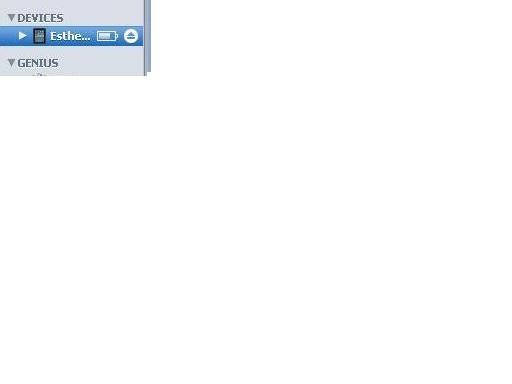
2. When the  iTunes screen appears on your computer, go to the Devices icon

3. Click on the Devices icon
4. A series of tabs will appear

5. Click on the tab that says "Info"

6. Scroll down to the Sync Calendars area and click on the box

7. Take a look at the other options. You can sync your contacts and notes as well.

I hope this helps other Boomers set up their iPads. Can anyone think of a reason why this wouldn't be an automatic part of iPad setup? We are coming closer to devices that are as easy to use as the TV used to be, but not quite.

Sunday, April 25, 2010

Check out the EONs iPad Discussion Board, Boomers

I've been hanging out a little with the good folks at the iPad discussion board on EONs, a social networking site aimed at Boomers.

This is a Boomer to Boomer site,  so don't expect to find your kids or any member of the younger generation crowding around this social networking water cooler. What you get are some good, solid people who are trying out this new device just like you and me. They're smart and most of them are not techies. It's great to watch them as they handle this new toy.

The discussion board has a couple of more knowledgeable members who give technical answers when needed. Overall, it is a great laboratory for how Boomers will use this device and what the potential problems are with it. I recommend everyone go to the website and give it a read. You do have to join EONs first, but if you are interested in the pros and cons of the iPad for people our age, I definitely think you should do it.

The Boomers at EONs do a great deal with the iPad. They read books on the device, but they also are trying out all of the free apps that are available for it. One of these just happens to be for a comic book company, and users can download free comic books. One member of the group (for privacy purposes I won't name user names) finds comic books "better than on paper." He calls the graphics on the iPad screen "out of this world." That's something people really ought to know.

Streaming and viewing movies and video is also a favorite activity  reported by discussion group members. Working with a screen that is only 10 inches from your face, makes movies really come alive, they report. It's a personal, intimate, experience. Movies are downloaded through Netflix, and videos through a number of apps including YouTube. A couple of people on the board figured out how to make the iPad work with their TV without much fuss, so now they can stream movies, videos etc from the iPad onto the TV.


People here are very generous with their advice. They give lists of the best apps they've found. One of the ones mentioned is Stumbleupon, (www.stumbleupon.com) an app I've been meaning to discuss on this board. You can use Stumbleupon on your computer, smart phone or iPad and it does the same thing.

You select topics that are of interest to you and start stumbling though the web. My "Stumbles" have brought me to the website of the guy who does all those great chalk drawings and to pictures from someone who does unbelievable sand sculptures.

What you'll find depends on what topics you enter. This is a really fun way to surf the web and find things you never knew about.

Some of the Eons group have run into problems with their iPad: games that stall or are hard to make work after hours of playing; apps that let you download material but don't let you delete it; apps that don't look right on the iPad, clearly just brought over to the new platform directly from the iPhone; a keyboard that is clumsy to use. They've run into the device's limitations in real world scenarios. But for the most part they are an extremely enthusiastic bunch who don't believe that this will be a device that will end up on the trash heap.

Monday, April 5, 2010

Why I didn't pre-order the iPad

You would think that as a boomer trying out new technologies, I would have been an early adopter of the iPad. I've written about this device prior to its availability last weekend and for the most part I've been impressed with all it can do. I reiterate that this is a slate device meant for the rest of us---the non-techies in the world. And I think I would like it. Techies should note: this is a consumer device, and consumers will be judging it. If it answers the question "does it enhance my life or make my life easier?" it will gain traction.

All that being said, I think it's just too expensive right now. In a year, when Apple lowers the price as it has on the iPhone and on the iPod in their time, I will jump on the bandwagon and buy the iPad. And I would guess that a LOT of Boomers will jump on the bandwagon along with me. Even so analysts are suggesting that Apple could sell 5 million of these devices this year at the higher prices.

By the time Apple lowers prices, initial demand will have softened. All the reviews will be out. I'll know if it's really too heavy for happy magazine and book reading. Yes, a lot of us have shoulder and carpal tunnel problems and don't want to hold something in our hands that weighs the 1.5 lbs (iPad) compared to the 10 ounces or so of the Kindle. Also, I'm sure that the device will slim down some by the time the next version comes around. When the iPod first came out it was heavy, compared to today's versions.

I'll know if I really need to spend money for a 3G connection for the device, or if a WiFi connection is good enough for me. I'll have figured out if the virtual keyboard is sufficient for sending out the occasional email or typing in a website address. And Apple will have either provided a USB port and a camera or not, and I'll know if I think this is a deal breaker for the device.

By the time I get to mine, Apple will have time to iron out all the kinks. Some industry observers say there are some problems with charging the battery in the initial version, especially if you have an older computer. You know we Boomers hold on to our computers far longer than the techie types do, so that would concern me.

When I get my iPad, I'll know that many of the applications written for the slate, work on it, and that they will delight me or not. I'll know if the vibrant color touch screen really makes a difference, or if reading on the iPad will be harder on the eyes than reading on the Kindle's E Ink.   Now some reviewers are saying that some applications are grainy or don't take advantage of the iPad's unique features. I'm sure that will change over time.


Of course, the fact that I've made a practical choice doesn't prevent me from wanting this device. So stay tuned, Boomers, because I'm heading over to the Apple store this afternoon. I'm going to stand there and try the iPad out and hope there isn't too long of a line to do the same thing.

Thursday, January 28, 2010

Will Boomers Like the New Apple iPAD?

Before I draw a conclusion about whether or not boomers will like the new Apple iPAD, let me tell you that I haven’t had a chance to play with the device, yet. However, all indications are that baby boomers will like it. The device was introduced Wednesday and if you missed the hoopla surrounding the release, then you don’t watch much news or read the newspaper. My local newspaper featured a story about it on the front page, and I live in New Jersey, not Silicon Valley!


At first glance, it seems that Apple got this mostly right. The device is much more than an e-book reader. It can be used to surf the web, view videos, play games etc. Yet it's easy and intuitive to use. It is also very thin and light weight, a feature boomers will love when they throw the device into their carry-on bag. And, yes, I think we will like reading on this device. The keyboard is the same virtual keyboard that comes with the iPhone, but bigger. The jury is still out as to whether boomers will enjoy the experience of typing on this keyboard.


The price may put some people off, but the entry level iPAD which lists for $499 is comparable in price to the Kindle DX.  The Kindle DX lists for $489. The Kindle is a dedicated book reader with wireless 3G communications bundled into the price. The iPAD is a multi-faceted device. The entry level device comes with WiFi (you can use it at hotspots and in your home if you have a wireless network) but not 3G. If you want 3G it will cost you a monthly fee, and you’ll have to upgrade to a pricier model. Models range in price up to a whopping $829.


You know through previous posts that I had some issues with the Kindle DX which I thought wasn’t easy to use at all, especially in an academic setting. On paper it looks as though iPAD developers took some of the criticisms to heart. In his announcement, Steve Jobs said that Apple is clearly “standing on the shoulders” of Amazon, and Apple does owe a debt of gratitude to Amazon for establishing this category of device.

One of my problems with the Kindle was ease of navigation. You couldn’t just easily flip through pages to go back to something you read earlier. If you are using the iPAD to read a book, you can flick through the pages (forward and back) using your finger and easily flip to the table of contents. Apparently, like the Kindle, you can change the size of the typeface, an important feature for boomers who want devices that are easy on our eyes.


This quote is from Apple: “The iBooks app is a great, new way to read and buy books. Just download the app for free from the App Store, and you’ll be able to buy everything from classics to bestsellers from the built-in iBookstore. Once you’ve bought a book, it’s displayed on your Bookshelf. To read it, all you have to do is tap on it and it opens up. The high-resolution, LED-backlit screen displays everything in sharp, rich, color, so it’s very easy to read, even in low light.” That last part is good for Boomers too!

Rob Pegoraro in his Fast Forward blog on the WashingtonPost.com says “The iBooks store won't come near the inventory of Amazon's Kindle Store, but the iPad's screen offers a level of detail impossible on the e-ink screens of the Kindle, Barnes and Noble's Nook and other e-readers. A copy of the late Sen. Edward M. Kennedy's "True Compass" opened on a prototype iPad looked strikingly like a paper edition, featuring black-and-white and color photos, finely drawn text and no wait to turn an onscreen page."

One feature that Boomers like on the Kindle seems to be lacking on the iPAD. Kindle’s Whispersync technology keeps your books all on the same page, whether you are reading on your iPhone, Kindle, or PC. I didn’t see any mention of this feature in the material Apple sent out.

Publishers will like that the e-reader part of the iPAD uses books published in the e-pub format, which is an industry standard format. The Kindle uses a proprietary format to Amazon, and books downloaded to the Kindle can only be used on the Kindle or on Kindle Reader software.


Stay tuned for more information on the iPAD. One good thing about the device is that it will be available in Apple retail stores to look at a play with before you buy. You can’t do that with a Kindle.