This is just a short update to my previous post about photos updated to the web that carry GPS information with them.
Besides being able to block that information from being collected by your phone or camera, the site Lifehacker presents ways to remove the data from your pictures, once they've already been uploaded to the web.
So if you've already posted a lot of pictures on Facebook, and you don't want the geo information to be associated with the pictures, follow the directions contained in this Lifehacker article: How Can I Remove Personal Info (Like Location) From Photographs by Whitson Gordon. The instructions for removing the offending information for Windows are very simple. Thank you to my daughter for bringing this article to my attention.
Wednesday, February 16, 2011


Monday, February 7, 2011
Boomers: Your Photos May Disclose More Data than You Think
Recently, an ABC news video has been making the Internet rounds, exposing the fact that newer cameras and phones equipped with GPS chips are embedding location information into photos. This makes it easy for stalkers to find the addresses of the people who posted the photos. A lot of people are worried about this; I received the clip from three people in two days.
The iPhone, for example, automatically embeds the user's latitude and longitude in the "metadata" attached to each photo. If you don't want to be found for some reason, this could be dangerous. I can think of a few obvious examples: a battered woman who has left her spouse; a celebrity who wants to preserve some moments away from the paparazzi; a public official who doesn't want his "niece" found; the CEO of a financial organization that has lost its depositors' money who doesn't want journalists to find his home.
This ABC online story tells the tale of two researchers at the International Computer Science Institute in Berkeley, California who were able to find the private home addresses of a Playboy Playmate and some TV hosts. It was relatively easy to do.
It's always been relatively easy for a motivated individual to find your home address, even before these days of online look-up systems. You could just look in the White Pages. If the person was from out of your local area, you went over to the library and looked through the shelves of White Pages books stored there. Obviously, the White Pages had its limitations. In the past, if you didn't know where someone lived, you might have to go through a hundred telephone books to find them. In other words, you really needed to be motivated. And most people who didn't want to be found paid the telephone company for an unpublished listing.
However, it's now much easier, not to mention quicker, for unscrupulous people to find out where you live. The New York Times notes that:
The TV was purchased by someone who had a business in my local area, and I was able to confirm his identity online and match the phone number he gave me in the email with his place of business. But what if the picture of the TV had been taken by a phone that was GPS enabled and had included location metadata? Then any unscrupulous person could have known where I lived and what merchandise I had. Further, if I had shown the TV in a living area of my home, they would have been able to find out much more about me. This is very unsettling. So if you ever post pictures online --of your cute grandkids, your dog, the tons of snow in front of your house--you should think about the information you are sharing.
There are many good reasons to use GPS metadata in photos. It's very convenient, for example, to post pictures to services like Flikr which then "know" where the picture was taken and label it with the location. Pictures from your trip to Japan will have exact locations attached, which for someone who forgets to record that kind of info, is very helpful when organizing albums. If you post pictures from home, you are not at risk of disclosing your location if you choose to make your photos private (an option most photo sharing sites allow) and only share them with people you know. However, if you take a lot of pictures at home and make your albums public, then you should think about the risks associated with letting everyone who has access to the site know your location.
Prompted by one of the articles I read on this subject, I visited a website called I Can Stalk You, which bills itself as "raising awareness about inadvertent information sharing." This site has hints on how to turn off GPS tracking for photos on the iPhone. Here is what I Can Stalk You has to say about turning off the GPS location information on the iPhone 4:
So if you want to turn off location data for the camera on the iPhone 3 series, this is what you'll need to do: Go to Settings, General, then Reset. The rest of the instructions are borrowed from this page on the website I Can Stalk You, which I strongly suggest you visit.


Not everyone has an iPhone, and I Can Stalk You has some directions for Blackberry users and some others. Since every manufacturer has different instructions, it may take some digging for you to figure out how to disable your information on your newer camera or on your smartphone, if you choose to do so.
In this day and age it's not only technology that reveals your location, but sometimes your friends want to tag the location that a picture was taken on Facebook. ABC News provides the following information on how to protect your Facebook photos from friends who might want to disclose your location to others.
The iPhone, for example, automatically embeds the user's latitude and longitude in the "metadata" attached to each photo. If you don't want to be found for some reason, this could be dangerous. I can think of a few obvious examples: a battered woman who has left her spouse; a celebrity who wants to preserve some moments away from the paparazzi; a public official who doesn't want his "niece" found; the CEO of a financial organization that has lost its depositors' money who doesn't want journalists to find his home.
This ABC online story tells the tale of two researchers at the International Computer Science Institute in Berkeley, California who were able to find the private home addresses of a Playboy Playmate and some TV hosts. It was relatively easy to do.
It's always been relatively easy for a motivated individual to find your home address, even before these days of online look-up systems. You could just look in the White Pages. If the person was from out of your local area, you went over to the library and looked through the shelves of White Pages books stored there. Obviously, the White Pages had its limitations. In the past, if you didn't know where someone lived, you might have to go through a hundred telephone books to find them. In other words, you really needed to be motivated. And most people who didn't want to be found paid the telephone company for an unpublished listing.
However, it's now much easier, not to mention quicker, for unscrupulous people to find out where you live. The New York Times notes that:
By downloading free browser plug-ins like the Exif Viewer for Firefox (addons.mozilla.org/en-US/firefox/addon/3905/) or Opanda IExif for Internet Explorer (opanda.com/en/iexif/), anyone can pinpoint the location where the photo was taken and create a Google map.One article said that people who list items for sale on Craigslist could be setting themselves up for robbery, just by posting a picture of the item for sale on the website. Last year, I posted a photo, taken at my home, of an old TV I wanted to sell on Craigslist. I didn't give out my address; people contacted me through Craigslist's email address, and I only contacted people who were interested and whose identity I could verify.
The TV was purchased by someone who had a business in my local area, and I was able to confirm his identity online and match the phone number he gave me in the email with his place of business. But what if the picture of the TV had been taken by a phone that was GPS enabled and had included location metadata? Then any unscrupulous person could have known where I lived and what merchandise I had. Further, if I had shown the TV in a living area of my home, they would have been able to find out much more about me. This is very unsettling. So if you ever post pictures online --of your cute grandkids, your dog, the tons of snow in front of your house--you should think about the information you are sharing.
There are many good reasons to use GPS metadata in photos. It's very convenient, for example, to post pictures to services like Flikr which then "know" where the picture was taken and label it with the location. Pictures from your trip to Japan will have exact locations attached, which for someone who forgets to record that kind of info, is very helpful when organizing albums. If you post pictures from home, you are not at risk of disclosing your location if you choose to make your photos private (an option most photo sharing sites allow) and only share them with people you know. However, if you take a lot of pictures at home and make your albums public, then you should think about the risks associated with letting everyone who has access to the site know your location.
Prompted by one of the articles I read on this subject, I visited a website called I Can Stalk You, which bills itself as "raising awareness about inadvertent information sharing." This site has hints on how to turn off GPS tracking for photos on the iPhone. Here is what I Can Stalk You has to say about turning off the GPS location information on the iPhone 4:
To see your settings, go to Settings, General, then Location Services. From there you can set which applications can access your GPS coordinates or disable it entirely.For the iPhone 3 series of phones, users have to jump through some hoops. iPhone series 3 users can turn off ALL location based services by going to Settings, General then set Location Services to Off. While this is simple, I don't recommend doing this. You will never be able to use Google Earth, for example, or driving direction features that use your present location.
So if you want to turn off location data for the camera on the iPhone 3 series, this is what you'll need to do: Go to Settings, General, then Reset. The rest of the instructions are borrowed from this page on the website I Can Stalk You, which I strongly suggest you visit.
Be careful here! We want to select Reset Location Warnings, and then Reset Warnings. This restores all of our Location based warnings for each application to the default, which in most cases is "Ask on first use".


From here, once we enter into the default Camera app on the iPhone, we can select Don't Allow. This will prevent the Camera app from geo-tagging our photos.

Not everyone has an iPhone, and I Can Stalk You has some directions for Blackberry users and some others. Since every manufacturer has different instructions, it may take some digging for you to figure out how to disable your information on your newer camera or on your smartphone, if you choose to do so.
In this day and age it's not only technology that reveals your location, but sometimes your friends want to tag the location that a picture was taken on Facebook. ABC News provides the following information on how to protect your Facebook photos from friends who might want to disclose your location to others.
So fellow Boomers, enjoy taking and posting pictures. I know you do it. I've seen those pictures of your grandkids! Tell your children about this too, and make them a little bit more aware of what data is hidden in those pictures they take and share.
- Go to your Facebook account.
- Click "Account" in the top right corner.
- Click "Privacy Settings.".
- In the "Sharing on Facebook" section, click "Customize settings."
- Scroll down to "Things others share" and make the option next to "Friends can check me into Places" read "Disabled."
Monday, January 31, 2011
Eight Ways One Boomer Uses Her iPad Daily
Recently, I had a fascinating conversation with my niece who won an iPad at a charity event. She said she only uses it to play Scrabble, but that her 11 year old daughter uses the iPad for numerous things like watching downloaded TV programs and playing games. In her house, an iPad has become an entertainment device for her child. That made me think of the many ways I use my iPad, and I know I am not making as much use of it as many people. Here are eight ways I use my iPad on a daily basis.
1. Checking email. My iPad is upstairs where I don't have a "real" computer, and I don't carry my phone with me around the house. Therefore, I check my email on the iPad quite often. I usually don't write lengthy replies on the device, but save that task for my computer that has a more comfortable keyboard option. Sorry, Steve Jobs, but I really don't want to type for any length of time on the iPad's keyboard.
2. Reading books. I always have a book going on the iPad, usually in the Kindle app. With the Kindle app, I can read my books on multiple devices, and they stay in sync, so when I start to read on one device, I pick up where I left off on another, a feature I really like. Right now I am reading a book called Spies of the Balkans by Alan Furst on three devices: my computer, my iPhone and my iPad.

3. Reading magazines and newspapers. I downloaded the New York Times app and the Washington Post app. I also have the USA Today app on my iPad.

I have a lot of magazines on there too, but find I spend less time reading them on the iPad than I expected. As I've said before in this blog, magazines aren't working out that well for me on the iPad. While their interactive features are interesting and engaging, I usually save magazine reading for airplane trips. Unfortunately, you can't keep the Wifi on in most airplanes, so you lose the interactivity of many of the newer apps.
3. Watching TV I missed. I have a DVR, but sometimes I miss recording a program. If it's on ABC, I watch it on the ABC app. Otherwise, I "stream" it from Netflix. The Netflix app is free, but you do have to pay Netflix's monthly subscription fee, which lets you watch practically anything the company offers on demand. One caveat, however: if you start something on one device, like your computer, and then try to watch it on Netflix on the iPad, Netflix doesn't always hold your place.

4. Finding out tomorrow's weather. OK, I'll confess. We don't watch local news at night, so I'm often clueless about the forecast. It's easy to keep up with any one of the app store's weather apps. This is The Weather Channel app that I use:

5. Playing Scrabble. This simply is one of the most addictive and fun apps out there. I play the "Solo" game, locking wits with the computer sometimes. Luckily, you can set how hard you want the computer to challenge you! Also, my husband and I "Pass and Play" taking a few turns each night before we fall into bed.So far we are pretty evenly matched although there was that one time he beat me by 100 points!

6. Looking up odd facts on Google. Google is great, and if you ever want to know what a word means or who that actor is in the old movie you are watching, Google is the place to go. I use the iPad app for finding out things on Google often.
7. Looking at my old pictures. I think the iPad is unsurpassed as a way to look through your old digital photo albums. It's just so easy to flip between pictures and the pictures look gorgeous on the device.
8. Checking Facebook---I'm not a big Facebook user, but I admit I go there almost every day to check in on people's updates and figure out what's happening with my far flung family. The Facebook/iPhone app is easy to use and also makes putting in a status update quite easy
 .
.
What surprises me in all of this is the one thing I don't do much: surf the web. I like to use a bigger screen for that job, so when I'm looking at a lot of websites, I go to my computer. Also I don't create much using the iPad. I guess I never got past the rather hard-to-use keyboard.
Nevertheless, the iPad has eliminated the need for a laptop or netbook in our bedroom. I often ask myself if the iPad was worth the money, and my answer right now is "yes". Certainly it is a luxury gadget, but it's one that brings me pleasure and gets a lot of use.
If any of you have iPads, please let me know what you use yours for on a daily basis. It would be fun to compare notes.
1. Checking email. My iPad is upstairs where I don't have a "real" computer, and I don't carry my phone with me around the house. Therefore, I check my email on the iPad quite often. I usually don't write lengthy replies on the device, but save that task for my computer that has a more comfortable keyboard option. Sorry, Steve Jobs, but I really don't want to type for any length of time on the iPad's keyboard.
2. Reading books. I always have a book going on the iPad, usually in the Kindle app. With the Kindle app, I can read my books on multiple devices, and they stay in sync, so when I start to read on one device, I pick up where I left off on another, a feature I really like. Right now I am reading a book called Spies of the Balkans by Alan Furst on three devices: my computer, my iPhone and my iPad.

3. Reading magazines and newspapers. I downloaded the New York Times app and the Washington Post app. I also have the USA Today app on my iPad.

I have a lot of magazines on there too, but find I spend less time reading them on the iPad than I expected. As I've said before in this blog, magazines aren't working out that well for me on the iPad. While their interactive features are interesting and engaging, I usually save magazine reading for airplane trips. Unfortunately, you can't keep the Wifi on in most airplanes, so you lose the interactivity of many of the newer apps.
3. Watching TV I missed. I have a DVR, but sometimes I miss recording a program. If it's on ABC, I watch it on the ABC app. Otherwise, I "stream" it from Netflix. The Netflix app is free, but you do have to pay Netflix's monthly subscription fee, which lets you watch practically anything the company offers on demand. One caveat, however: if you start something on one device, like your computer, and then try to watch it on Netflix on the iPad, Netflix doesn't always hold your place.

4. Finding out tomorrow's weather. OK, I'll confess. We don't watch local news at night, so I'm often clueless about the forecast. It's easy to keep up with any one of the app store's weather apps. This is The Weather Channel app that I use:

5. Playing Scrabble. This simply is one of the most addictive and fun apps out there. I play the "Solo" game, locking wits with the computer sometimes. Luckily, you can set how hard you want the computer to challenge you! Also, my husband and I "Pass and Play" taking a few turns each night before we fall into bed.So far we are pretty evenly matched although there was that one time he beat me by 100 points!

6. Looking up odd facts on Google. Google is great, and if you ever want to know what a word means or who that actor is in the old movie you are watching, Google is the place to go. I use the iPad app for finding out things on Google often.
7. Looking at my old pictures. I think the iPad is unsurpassed as a way to look through your old digital photo albums. It's just so easy to flip between pictures and the pictures look gorgeous on the device.
8. Checking Facebook---I'm not a big Facebook user, but I admit I go there almost every day to check in on people's updates and figure out what's happening with my far flung family. The Facebook/iPhone app is easy to use and also makes putting in a status update quite easy

What surprises me in all of this is the one thing I don't do much: surf the web. I like to use a bigger screen for that job, so when I'm looking at a lot of websites, I go to my computer. Also I don't create much using the iPad. I guess I never got past the rather hard-to-use keyboard.
Nevertheless, the iPad has eliminated the need for a laptop or netbook in our bedroom. I often ask myself if the iPad was worth the money, and my answer right now is "yes". Certainly it is a luxury gadget, but it's one that brings me pleasure and gets a lot of use.
If any of you have iPads, please let me know what you use yours for on a daily basis. It would be fun to compare notes.
Thursday, January 27, 2011
I Bet You'll Be Paying for Coffee From Your Phone, Boomers
Just a brief note to my loyal readers. I'm sorry I've not posted for a while. I'm getting back in the saddle now, and hope to keep this blog updated on a more regular basis. Thank you for your indulgence.
About a week ago, I heard that Starbucks was going to release an app for the iPhone that will allow people to pay for their Skinny Caramel Macchiatos with their phones. The more I thought about it, the more I wanted to tell you about it. Baby Boomers are big coffee drinkers and many of us need our fix every morning. Some of us absolutely pay top dollar for our designer coffee. I'm not the only Baby Boomer in line at my local Starbucks and my husband waits in line every day in NYC for his fix of java.
One question always has been: "How can Starbucks make that line move faster?" Well, I think Starbucks actually has hit on something that will make the line move faster! Also, I think what they are doing will make it more likely that our generation will trust paying for goods and services with our phone.
Now, I've heard about elaborate schemes that let people use their phones as credit cards before, but they all required either another piece of hardware hooked up to the phone or some other elaborate effort ---which I don't think people are going to actually do. One "pilot program" I read about, is described in this Reuters article:
 First, download the Starbucks Card Mobile App from the App Store, then buy a Starbucks gift card or "stored value" card from your local Starbucks. You can even buy one online and have it emailed to yourself, but to test this app out I bought a card for $25.00.

The app prompts you to enter the card number and a passcode, which is scratched off from the gift card. After you've entered those numbers, you've registered your card.

You don't have to do anything else to register your card, but if you wish to accumulate points and to qualify for a free birthday drink, you can register for the Starbuck's loyalty program as in the screen above. You can also reload your card online at Starbuck's website:

Today I took my phone out to my local Starbucks for a test run. After ordering my 140 calorie Skinny Caramel Macchiato, I touched the portion of the card below that says "Touch to Pay" then handed my phone to the cashier to scan the bar code that appeared. For obvious reasons, I've changed the bar code picture below.
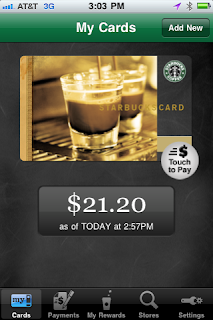
 After the cashier was finished I touched the button that said "Touch When Done", and my purchase registered on my phone. I liked using the app because there was no fumbling in my purse for my credit card or for cash, no change to worry about, no signing, no making sure that my credit card got back into my wallet.
Simply put it was quick and easy, and I think it will be the future --how all of us will pay for small items. I definitely think Starbucks will be the merchant to make mobile payments accessible even to those of us who reject such notions. And I think that this is one technology that baby boomers will readily adopt.
About a week ago, I heard that Starbucks was going to release an app for the iPhone that will allow people to pay for their Skinny Caramel Macchiatos with their phones. The more I thought about it, the more I wanted to tell you about it. Baby Boomers are big coffee drinkers and many of us need our fix every morning. Some of us absolutely pay top dollar for our designer coffee. I'm not the only Baby Boomer in line at my local Starbucks and my husband waits in line every day in NYC for his fix of java.
One question always has been: "How can Starbucks make that line move faster?" Well, I think Starbucks actually has hit on something that will make the line move faster! Also, I think what they are doing will make it more likely that our generation will trust paying for goods and services with our phone.
Now, I've heard about elaborate schemes that let people use their phones as credit cards before, but they all required either another piece of hardware hooked up to the phone or some other elaborate effort ---which I don't think people are going to actually do. One "pilot program" I read about, is described in this Reuters article:
The program will allow select New York-area employees and customers to install small chips, supplied by Visa and its technology vendors, in their smartphones that emit radio signals over very short distances.
Customers would then "bump" their phones with point-of-sale devices in stores -- actually they need only wave the phones near the devices -- and their bank account data would be collected and their purchases completed.Frankly, people in Japan have been using their phones for years as a mobile wallet, but in the case of Japan, I believe the phone company takes the charges and collects the money on the bill. Here, credit card companies and banks want to be involved. But the Starbucks solution is perfect for small purchases. And people usually will use their credit cards to "buy" the gift card that is being used.


The app prompts you to enter the card number and a passcode, which is scratched off from the gift card. After you've entered those numbers, you've registered your card.

You don't have to do anything else to register your card, but if you wish to accumulate points and to qualify for a free birthday drink, you can register for the Starbuck's loyalty program as in the screen above. You can also reload your card online at Starbuck's website:


Today I took my phone out to my local Starbucks for a test run. After ordering my 140 calorie Skinny Caramel Macchiato, I touched the portion of the card below that says "Touch to Pay" then handed my phone to the cashier to scan the bar code that appeared. For obvious reasons, I've changed the bar code picture below.
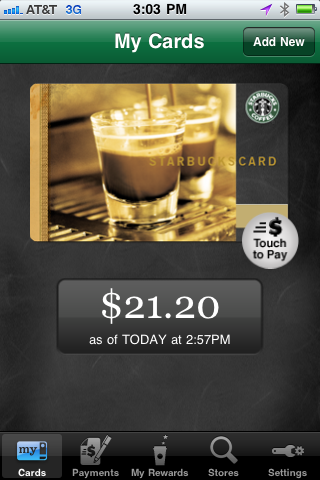

Simply put it was quick and easy, and I think it will be the future --how all of us will pay for small items. I definitely think Starbucks will be the merchant to make mobile payments accessible even to those of us who reject such notions. And I think that this is one technology that baby boomers will readily adopt.
Wednesday, December 15, 2010
The Gift of Free e-Books this Holiday Season, Boomers!
I can't tell you how it breaks my heart to publish this post. My sister, Anita Lyons, has been helping me with these, checking for typos and spelling errors, for the last few months. This is the last post she helped me with before she passed away. I will always be grateful to her for her interest in my work, her devotion to language, and her love of family.
Once again, apologies for not publishing on a timely basis. I am still working on my thesis, and hope to get back to regular posts once it is finished. While I'm a bit overwhelmed right now, I wanted to give you a kind of holiday gift this season: the present of free reading. I'll explain.
I always read Rob Pegoraro's Faster Forward posts in the Washington Post, and at the end of November he wrote one about Amazon. Apparently, Amazon has been charging Kindle users a fee for books that are essentially free! The titles in question are not just public domain books, but books that have been formatted for Project Gutenberg by volunteers, Pegoraro said. In October, he had received an email from one of the volunteers:
That made me wonder if Baby Boomers and others who are new users of e-book readers actually knew about Project Gutenberg, a great free site for books that are out of copyright. You can download all the classics from this site without paying a cent or even registering. If you like the site, and want to contribute to its upkeep, then you can donate to it. Otherwise, you can use the books there as you wish. To download the books to your Kindle, choose the Kindle format. You can also find "epub" formatting for most books and Apple formatting for some books.
Here is a link to Project Gutenberg's top 100 most downloaded books. When I looked on the day I wrote this blog Sherlock Holmes, A Christmas Carol, Huck Finn and Pride and Prejudice were all on the list, as was an audio book from an author I've never heard of called The Song My Paddle Sings, a poetry book by Canadian author E. Pauline Johnson.
Yesterday, I went to the site and decided to download some Sherlock Holmes. I took a look at Project Gutenberg's mobile site, which is in development but worked fine for me, and found that Adventures of Sherlock Holmes mysteries were listed there.

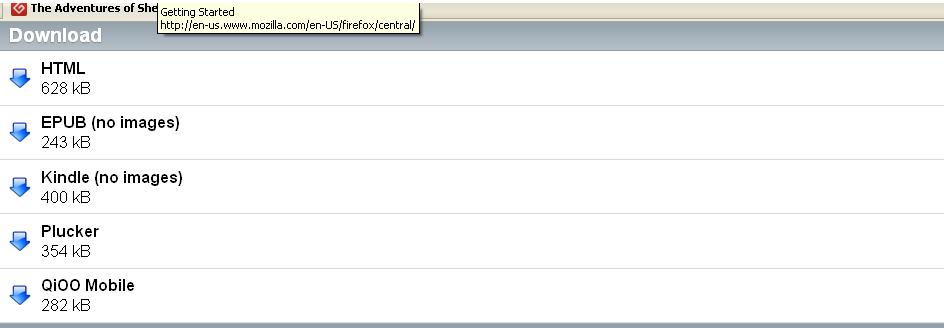
After I clicked on The Adventures of Sherlock Holmes, I came to this page:
 At the bottom, it listed a number of different formats for reading. Since I have the Kindle program on my iPad, my iPhone and my computer, I decided to download it in the Kindle format.
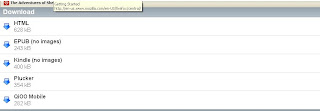 I selected Kindle within this list, and within moments the book opened on my computer within my Kindle app.
In my life, I've revisited some of the classics many times, and this is one way to do it without leaving the house, going to the library or paying a penny. So visit Project Gutenberg and enjoy the wealth of material on that site. I hope you like my "gift."
In my next post I'll show you how to get those Project Gutenberg books off of your PC and onto your mobile device. I also plan to discuss other sources of free reading material for the iPad and e-readers.
Once again, apologies for not publishing on a timely basis. I am still working on my thesis, and hope to get back to regular posts once it is finished. While I'm a bit overwhelmed right now, I wanted to give you a kind of holiday gift this season: the present of free reading. I'll explain.
I always read Rob Pegoraro's Faster Forward posts in the Washington Post, and at the end of November he wrote one about Amazon. Apparently, Amazon has been charging Kindle users a fee for books that are essentially free! The titles in question are not just public domain books, but books that have been formatted for Project Gutenberg by volunteers, Pegoraro said. In October, he had received an email from one of the volunteers:
"Gutenberg contributor Linda M. Everhart complained in an e-mail in late October that Amazon was selling a title she'd contributed to Gutenberg, Arthur Robert Harding's 1906 opus "Fox Trapping," for $4."
"They took the text version, stripped off the headers and footer containing the license, re-wrapped the sentences, and made the chapter titles bold," wrote Everhart, a Blairstown, Mo., trapper. She added that "their version had all my caption lines, in exactly the same place where I had put them."
That made me wonder if Baby Boomers and others who are new users of e-book readers actually knew about Project Gutenberg, a great free site for books that are out of copyright. You can download all the classics from this site without paying a cent or even registering. If you like the site, and want to contribute to its upkeep, then you can donate to it. Otherwise, you can use the books there as you wish. To download the books to your Kindle, choose the Kindle format. You can also find "epub" formatting for most books and Apple formatting for some books.
Here is a link to Project Gutenberg's top 100 most downloaded books. When I looked on the day I wrote this blog Sherlock Holmes, A Christmas Carol, Huck Finn and Pride and Prejudice were all on the list, as was an audio book from an author I've never heard of called The Song My Paddle Sings, a poetry book by Canadian author E. Pauline Johnson.
Yesterday, I went to the site and decided to download some Sherlock Holmes. I took a look at Project Gutenberg's mobile site, which is in development but worked fine for me, and found that Adventures of Sherlock Holmes mysteries were listed there.

After I clicked on The Adventures of Sherlock Holmes, I came to this page:

In my life, I've revisited some of the classics many times, and this is one way to do it without leaving the house, going to the library or paying a penny. So visit Project Gutenberg and enjoy the wealth of material on that site. I hope you like my "gift."
In my next post I'll show you how to get those Project Gutenberg books off of your PC and onto your mobile device. I also plan to discuss other sources of free reading material for the iPad and e-readers.
Friday, December 10, 2010
What kind of Tablet Should You Buy, Boomers?
Hello, Boomers. Once again I want to apologize for not publishing in this blog recently. I am in the midst of putting the finishing touches on my thesis and will return to blogging once that is complete. In the meantime, a colleague of mine, Gerry Purdy, of MobileTrax, LLC has written an email giving his advice to family and friends about what kind of tablet they might want to buy for the holidays. Most of Gerry's e-mail newsletters are written for the industry, but I thought this one was applicable to you. With his kind permission, I reprint it here.
I’ve had a number of friends and relatives ask me, “What tablet should you buy for the upcoming holidays?” The question is a good one to consider because there are so many choices this year. Remember that just a year ago the only ‘tablet’ in high volume production was the Kindle eReader. Now, there’s the new (better but still B&W) Kindle, the color nook from Barnes & Noble (really an eBook reader), the full function Apple iPad, the Galaxy Tab from Samsung and products announced from Dell (Slate) and RIM (BlackBerry PlayBook). I’ll focus on the first four products in this issue as I haven’t yet seen the Slate or PlayBook which are not yet shipping in volume.
Each one of these tablet devices may be right for you depending on your personal preferences. Of all the current tablets, Apple has created the most emotional appeal with its commercials emphasizing the “magical iPad”.
First, if you only want to read a book, then the Kindle will adequately meet your needs. The latest offering includes a 6” black & white display that provides higher contrast than previous models. It includes Wi-Fi & free 3G to download books from any location in the world and costs $189. There’s a Wi-Fi only version for $139, but I recommend spending $50 more to get one with built-in 3G. Amazon has the largest book collection, so the Kindle is a great gift for someone who’s an avid book reader and not likely to want the advanced features of a tablet.
The next step up is the Barnes & Noble nook that now includes a color display. They have announced support for a number of magazines that predominantly include color diagrams and photos. This isn’t a full tablet as it doesn’t support an OS like Apples iOS or Google’s Android, but it greatly expands the classes of content that can be displayed on a tablet device. This first version of the color nook only has Wi-Fi, but I expect you’ll see a color nook with 3G cellular wireless, since 3G is already provided in older nook models.
For the past six months, the full tablet arena was owned by Apple with the launch of the first version of the iPad. It has a larger 10” display, and the Apple App Store now includes thousands of applications that are designed specifically for the iPad. A good example is the app produced to provide a great experience for reading color-enhanced newspapers, magazines and periodicals.
I recently wrote a column (September 15, 2010) that declared the death of the physical newspaper within 10 years as the number of color tablets grows to hundreds of millions. I expect publishers to offer a better tablet-based content reading and searching experience versus what can be provided on paper. Rupert Murdoch has announced plans to publish a new digital newspaper called The Daily which will be delivered overnight to tablets. That’s the sign of the future.
The iPad has two great ways to read books: 1) iBooks (formatting method for just the iPad that is cool - pages flip graphically) and the iBook Store (library of iPad enhanced books like iTunes provides a library of music and videos) and 2) Amazon Kindle Reader for the iPad so you can get all of Amazon's digital books (millions of them) on your iPad. All of the books I have read on the iPad came out of the Amazon/Kindle library because it has significantly more titles.
I have found the iPad to be a much different experience than I thought it would be. First, it’s much more of a ‘pass around’ kind of device that is different from either an iPhone or a notebook/Mac. It’s easy to access photos or other things and just pass it to someone.
Pandora works well with the iPad (because it has good speakers). We sometimes just play background music, since it creates channels based on the music you like.
Email is easier on the iPad than the iPhone simply because it’s easier to see and much easier to type a reply. It doesn’t replace Outlook on the Mac/PC notebook, but still it’s easier to manage than with a phone.
I like the Amazon book store on the iPad as it has all of the books that are available with the Kindle. I suspect that you’ll just find that you can get books from Amazon (download the Amazon/Kindle app for the iPad), as well as some books from the iBook store, and end up just not needing the Kindle. If you have an older Kindle and are getting a new tablet like the iPad, give the Kindle to someone else who would enjoy reading books.
Just like with the iPhone, you sync up the iPad via 'Apple connector' to your notebook (Windows or Mac). You can then transfer files, photos and videos through the connector and using iTunes. All of your iTunes content is immediately available on your iPad -- which is nice (and not available on the Samsung Galaxy). And, you can make phone calls with the iPad using Skype and Wi-Fi.
The iPad will display PDF documents, allowing you to view them when out with friends or business associates. I use it with other people showing them PDF versions of presentations or documents or photos all the time. You'll be amazed that it becomes your group meeting interactive, pass around device.
I just acquired a Galaxy Tab. The screen is smaller at 7”, but it feels very comfortable holding and carrying it around. It has a camera, MicroSD slot for additional storage, and supports Adobe Flash -- thus easily displaying any web site that utilizes Flash technology. It can also be used to set up a mobile hotspot.
The Galaxy Tab is definitely 'better' (more features) than the iPad, but it's just coming out. Both have wireless with Wi-Fi built in, but I would recommend getting any tablet with 3G, as I have found you need access at times when Wi-Fi isn’t available. You can sign up for their least expensive wireless data plan, but make sure you use Wi-Fi for large downloads and apps like Pandora (streaming music) which consume a lot of bandwidth.
It seems clear to me that tablets will become a ‘must have’ for technology savvy individuals this year and then migrate into the enterprise market next year. By 2012, I expect tablets to be become part of what I refer to as ‘the three mobile device world’ which includes a notebook PC/Mac, SmartPhone and tablet. You talk and review with the SmartPhone, think and reflect with a tablet, and create and explore with a notebook/Mac.
If you want to get that ‘Ooooh’ and ‘Ahhhh’ (along with some ‘Eeeeeks’ and ‘OMGs’), give someone you love an Apple iPad or Samsung Galaxy Tab this holiday season. You’ll be so cool and receive lots of love.

I’ve had a number of friends and relatives ask me, “What tablet should you buy for the upcoming holidays?” The question is a good one to consider because there are so many choices this year. Remember that just a year ago the only ‘tablet’ in high volume production was the Kindle eReader. Now, there’s the new (better but still B&W) Kindle, the color nook from Barnes & Noble (really an eBook reader), the full function Apple iPad, the Galaxy Tab from Samsung and products announced from Dell (Slate) and RIM (BlackBerry PlayBook). I’ll focus on the first four products in this issue as I haven’t yet seen the Slate or PlayBook which are not yet shipping in volume.
Each one of these tablet devices may be right for you depending on your personal preferences. Of all the current tablets, Apple has created the most emotional appeal with its commercials emphasizing the “magical iPad”.
First, if you only want to read a book, then the Kindle will adequately meet your needs. The latest offering includes a 6” black & white display that provides higher contrast than previous models. It includes Wi-Fi & free 3G to download books from any location in the world and costs $189. There’s a Wi-Fi only version for $139, but I recommend spending $50 more to get one with built-in 3G. Amazon has the largest book collection, so the Kindle is a great gift for someone who’s an avid book reader and not likely to want the advanced features of a tablet.
The next step up is the Barnes & Noble nook that now includes a color display. They have announced support for a number of magazines that predominantly include color diagrams and photos. This isn’t a full tablet as it doesn’t support an OS like Apples iOS or Google’s Android, but it greatly expands the classes of content that can be displayed on a tablet device. This first version of the color nook only has Wi-Fi, but I expect you’ll see a color nook with 3G cellular wireless, since 3G is already provided in older nook models.
For the past six months, the full tablet arena was owned by Apple with the launch of the first version of the iPad. It has a larger 10” display, and the Apple App Store now includes thousands of applications that are designed specifically for the iPad. A good example is the app produced to provide a great experience for reading color-enhanced newspapers, magazines and periodicals.
I recently wrote a column (September 15, 2010) that declared the death of the physical newspaper within 10 years as the number of color tablets grows to hundreds of millions. I expect publishers to offer a better tablet-based content reading and searching experience versus what can be provided on paper. Rupert Murdoch has announced plans to publish a new digital newspaper called The Daily which will be delivered overnight to tablets. That’s the sign of the future.
The iPad has two great ways to read books: 1) iBooks (formatting method for just the iPad that is cool - pages flip graphically) and the iBook Store (library of iPad enhanced books like iTunes provides a library of music and videos) and 2) Amazon Kindle Reader for the iPad so you can get all of Amazon's digital books (millions of them) on your iPad. All of the books I have read on the iPad came out of the Amazon/Kindle library because it has significantly more titles.
I have found the iPad to be a much different experience than I thought it would be. First, it’s much more of a ‘pass around’ kind of device that is different from either an iPhone or a notebook/Mac. It’s easy to access photos or other things and just pass it to someone.
Pandora works well with the iPad (because it has good speakers). We sometimes just play background music, since it creates channels based on the music you like.
Email is easier on the iPad than the iPhone simply because it’s easier to see and much easier to type a reply. It doesn’t replace Outlook on the Mac/PC notebook, but still it’s easier to manage than with a phone.
I like the Amazon book store on the iPad as it has all of the books that are available with the Kindle. I suspect that you’ll just find that you can get books from Amazon (download the Amazon/Kindle app for the iPad), as well as some books from the iBook store, and end up just not needing the Kindle. If you have an older Kindle and are getting a new tablet like the iPad, give the Kindle to someone else who would enjoy reading books.
Just like with the iPhone, you sync up the iPad via 'Apple connector' to your notebook (Windows or Mac). You can then transfer files, photos and videos through the connector and using iTunes. All of your iTunes content is immediately available on your iPad -- which is nice (and not available on the Samsung Galaxy). And, you can make phone calls with the iPad using Skype and Wi-Fi.
The iPad will display PDF documents, allowing you to view them when out with friends or business associates. I use it with other people showing them PDF versions of presentations or documents or photos all the time. You'll be amazed that it becomes your group meeting interactive, pass around device.
I just acquired a Galaxy Tab. The screen is smaller at 7”, but it feels very comfortable holding and carrying it around. It has a camera, MicroSD slot for additional storage, and supports Adobe Flash -- thus easily displaying any web site that utilizes Flash technology. It can also be used to set up a mobile hotspot.
The Galaxy Tab is definitely 'better' (more features) than the iPad, but it's just coming out. Both have wireless with Wi-Fi built in, but I would recommend getting any tablet with 3G, as I have found you need access at times when Wi-Fi isn’t available. You can sign up for their least expensive wireless data plan, but make sure you use Wi-Fi for large downloads and apps like Pandora (streaming music) which consume a lot of bandwidth.
It seems clear to me that tablets will become a ‘must have’ for technology savvy individuals this year and then migrate into the enterprise market next year. By 2012, I expect tablets to be become part of what I refer to as ‘the three mobile device world’ which includes a notebook PC/Mac, SmartPhone and tablet. You talk and review with the SmartPhone, think and reflect with a tablet, and create and explore with a notebook/Mac.
If you want to get that ‘Ooooh’ and ‘Ahhhh’ (along with some ‘Eeeeeks’ and ‘OMGs’), give someone you love an Apple iPad or Samsung Galaxy Tab this holiday season. You’ll be so cool and receive lots of love.
Written by:
J. Gerry Purdy, Ph.D.
Principal Analyst
Mobile & Wireless
MobileTrax LLC
404-406-5309
Wednesday, November 10, 2010
Think of the iPad for Your Elderly Parents, Boomers
I know that many Baby Boomers are still in the sandwich generation, caring for loved ones who now are elderly. It's been interesting to me to find out that some of us are using technology to enhance the quality of life of older people whose minds might be shining as brightly as ever, but who have some physical limitation that keeps them tethered to home or even in a nursing home.
In the past, it was difficult to envision packing mom or dad's expensive and fairly heavy laptop with them to go to assisted living, and impossible to figure out how to get Internet access for the laptop. However, with the advent of the iPad older people are bringing their connections to the outside world inside with them.
I recently watched a YouTube video and a news report showing a 99 year old woman with glaucoma rediscovering her love of reading and writing poetry using an iPad which lets her see the letters because of the contrasting screen. I also had been following some posts on the Boomer social networking site eons (www.eons.com) by a devoted daughter, screen named Techie44, who wanted to keep in touch with her 94 year-old mom even though the daughter would be spending the winter many miles away. I contacted Techie44 and asked if I could share her story and she graciously agreed.
In the beginning, Techie44 wasn't sure if the iPad would work for her mom, but she thought that her mother, who has rheumatoid arthritis and is in a nursing home, might be able to master it. I read through Techie44's posts as she weighed the pros and cons of getting what was then a brand new device for her mom. One thing was telling, however. Her mom was already familiar with email and wanted to have her email with her in the nursing home.
After showing her mother the family's iPad and how it worked, Techie44 ordered one for her with Wi-fi and 3G and set up her mother's email accounts to sync with the iPad. She also sent her mom some email so she could practice replying. Thinking about what would make her mom happy, she also loaded the iPad with the Christmas and classical music that her mother loves and put in pictures of the family, as well as some photos of the family camping vacations, since that's what her mom used to love to do.
Significantly, Techie44 signed up for Apple's MobileMe, an application that keeps mobile devices in sync. This was suggested to her by one of the other eons posters and it turned out to be very important. The iPad is the kind of device that can be picked up easily and just "walk out the door" of a nursing home. MobileMe has a feature called "Find my iPhone/iPad" and if someone walked away with the device, it could let Techie44 know where it is.
In an email, Techie44 told me she put a sticker on the outside of the iPad notifying everyone that it could be tracked and that she demonstrated how she could track the device to the people at the nurses station. She also told them that she would prosecute if the device were stolen. Although she didn't tell me this, I expect she was hoping word of mouth would spread, and anyone thinking of walking away with the device would be forewarned. She also took the added precaution of selecting a pass code her mom could remember, so no one else could borrow the device.
Now I've always contended that MobileMe should be free, and not the $99/year product it is, but I'm willing to say that in this case it's worth the money. An added benefit of MobileMe is that Techie44 can link her mom up to a "cloud" photo gallery, and the family can update and add pictures to it from wherever they are, without having to load them directly onto the device. This was also pointed out by another eons poster.
So how is it going? Techie44's mom has arthritis, so hitting all the right icons and keys on the iPad is somewhat of a challenge, but she is managing, and enjoying the device. She does most of her typing herself but an aide helps her type long letters. She's listened to her music on the device, but had a bit of a problem figuring out how to shut it off. Thinking ahead, Techie44 showed someone at the nursing home the ins and outs of the iPad so they could help her.
In addition, Techie44 signed her mom up for the Facebook app, so now "Granny" can follow her grand nieces and nephews on the social networking site. She also downloaded an app called iFish Pond that will help her mom pretend she is sitting by a pond when the weather gets cold.
Techie44 says that she made the right choice in getting her mom an iPad. A computer would have had to sit on a table and her mother would have had to deliberately go to it. The iPad is easy for her mom to carry with her, and the 3G wireless solves the problem of getting Internet access in a nursing home, something that could prove to be nearly impossible.
One last thing: Techie44 says that the iPad has made a tremendous difference in the quality of her mother's life. She is connected to relatives she hadn't heard from for years and looks forward to receiving her email and photos from her family. You can't find a more ringing endorsement than that.
I know the post above makes it look like I endorse the iPad or that I'm employed by Apple, but I assure you I am not. I simply believe that this genre of tablet has opened up a new era of computing and is beneficial for society. Many, many tablets are coming into the market soon, but right now Apple essentially stands alone. If the upcoming Linux Android tablets are as easy to use as the iPad, as this author predicts, they too will gain traction with the elderly and will add to the societal goal of helping them stay connected.
In the past, it was difficult to envision packing mom or dad's expensive and fairly heavy laptop with them to go to assisted living, and impossible to figure out how to get Internet access for the laptop. However, with the advent of the iPad older people are bringing their connections to the outside world inside with them.
I recently watched a YouTube video and a news report showing a 99 year old woman with glaucoma rediscovering her love of reading and writing poetry using an iPad which lets her see the letters because of the contrasting screen. I also had been following some posts on the Boomer social networking site eons (www.eons.com) by a devoted daughter, screen named Techie44, who wanted to keep in touch with her 94 year-old mom even though the daughter would be spending the winter many miles away. I contacted Techie44 and asked if I could share her story and she graciously agreed.
In the beginning, Techie44 wasn't sure if the iPad would work for her mom, but she thought that her mother, who has rheumatoid arthritis and is in a nursing home, might be able to master it. I read through Techie44's posts as she weighed the pros and cons of getting what was then a brand new device for her mom. One thing was telling, however. Her mom was already familiar with email and wanted to have her email with her in the nursing home.
After showing her mother the family's iPad and how it worked, Techie44 ordered one for her with Wi-fi and 3G and set up her mother's email accounts to sync with the iPad. She also sent her mom some email so she could practice replying. Thinking about what would make her mom happy, she also loaded the iPad with the Christmas and classical music that her mother loves and put in pictures of the family, as well as some photos of the family camping vacations, since that's what her mom used to love to do.
Significantly, Techie44 signed up for Apple's MobileMe, an application that keeps mobile devices in sync. This was suggested to her by one of the other eons posters and it turned out to be very important. The iPad is the kind of device that can be picked up easily and just "walk out the door" of a nursing home. MobileMe has a feature called "Find my iPhone/iPad" and if someone walked away with the device, it could let Techie44 know where it is.
In an email, Techie44 told me she put a sticker on the outside of the iPad notifying everyone that it could be tracked and that she demonstrated how she could track the device to the people at the nurses station. She also told them that she would prosecute if the device were stolen. Although she didn't tell me this, I expect she was hoping word of mouth would spread, and anyone thinking of walking away with the device would be forewarned. She also took the added precaution of selecting a pass code her mom could remember, so no one else could borrow the device.
Now I've always contended that MobileMe should be free, and not the $99/year product it is, but I'm willing to say that in this case it's worth the money. An added benefit of MobileMe is that Techie44 can link her mom up to a "cloud" photo gallery, and the family can update and add pictures to it from wherever they are, without having to load them directly onto the device. This was also pointed out by another eons poster.
So how is it going? Techie44's mom has arthritis, so hitting all the right icons and keys on the iPad is somewhat of a challenge, but she is managing, and enjoying the device. She does most of her typing herself but an aide helps her type long letters. She's listened to her music on the device, but had a bit of a problem figuring out how to shut it off. Thinking ahead, Techie44 showed someone at the nursing home the ins and outs of the iPad so they could help her.
In addition, Techie44 signed her mom up for the Facebook app, so now "Granny" can follow her grand nieces and nephews on the social networking site. She also downloaded an app called iFish Pond that will help her mom pretend she is sitting by a pond when the weather gets cold.
Techie44 says that she made the right choice in getting her mom an iPad. A computer would have had to sit on a table and her mother would have had to deliberately go to it. The iPad is easy for her mom to carry with her, and the 3G wireless solves the problem of getting Internet access in a nursing home, something that could prove to be nearly impossible.
One last thing: Techie44 says that the iPad has made a tremendous difference in the quality of her mother's life. She is connected to relatives she hadn't heard from for years and looks forward to receiving her email and photos from her family. You can't find a more ringing endorsement than that.
I know the post above makes it look like I endorse the iPad or that I'm employed by Apple, but I assure you I am not. I simply believe that this genre of tablet has opened up a new era of computing and is beneficial for society. Many, many tablets are coming into the market soon, but right now Apple essentially stands alone. If the upcoming Linux Android tablets are as easy to use as the iPad, as this author predicts, they too will gain traction with the elderly and will add to the societal goal of helping them stay connected.
Subscribe to:
Posts (Atom)